Archive

Articles taggués ‘Ubuntu’

How To Use ProxySQL as a Load Balancer for MySQL on Ubuntu 16.04

02/05/2024 Comments off

Introduction

ProxySQL is an open-source MySQL proxy server, meaning it serves as an intermediary between a MySQL server and the applications that access its databases. ProxySQL can improve performance by distributing traffic among a pool of multiple database servers and also improve availability by automatically failing over to a standby if one or more of the database servers fail.

In this guide, you will set up ProxySQL as a load balancer for multiple MySQL servers with automatic failover. As an example, this tutorial uses a multi-primary replicated cluster of three MySQL servers, but you can use a similar approach with other cluster configurations as well.

Prerequisites

To follow this tutorial, you will need:

Lire la suite…
Categories: Bases de données, Système Tags: ,

Use a classic menu in Unity

28/04/2024 Comments off

Source: WebUpd8

If you find Dash to be confusing and want to use a classic menu in Unity, you have at least two alternatives: Cardapio or a new ClassicMenu Indicator.

ClassicMenu Indicator

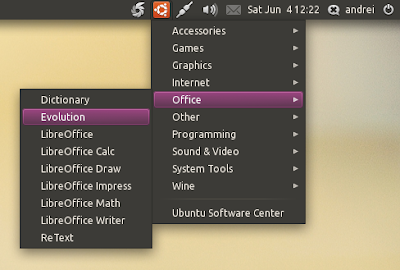
Classic Menu Indicator Ubuntu
While the idea is great, there are a few annoyances: you can’t move indicators in Ubuntu so you can’t move the menu to the position you want on the panel and also, ClassicMenu AppIndicator doesn’t display icons for the menu items. You can get it to display icons by using the commands posted here.
Still, ClassicMenu Indicator is a great menu alternative for those who don’t like Dash and I’m sure it will improve in the future (this is the first public release).

Update: there’s now a PPA too:

sudo add-apt-repository ppa:diesch/testing
sudo apt-get update
sudo apt-get install classicmenu-indicator

Cardapio

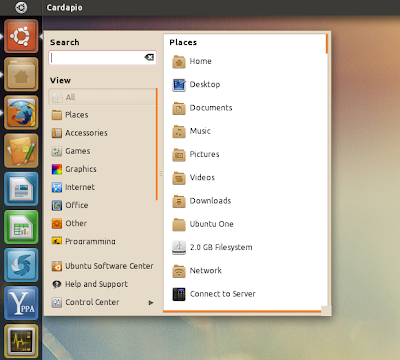
Cardapio Unity launcher

Cardapio is a main menu alternative with quite a few cool features: it comes with Zeitgeist integration, includes plugins for performing inline searches of Files (via Tracker), Software Center, Google, Wikipedia, and much more.

A long time ago, when Cardapio didn’t have an Avant Window Navigator applet, we posted about adding Cardapio to AWN using a feature that displays Cardapio near your mouse using a command (« cardapio show-near-mouse« ). Well, using the same command you can create an Unity panel launcher to run Cardapio, like you can see in the screenshot above.

To use the launcher, firstly install Cardapio:

sudo add-apt-repository ppa:cardapio-team/unstable
sudo apt-get update
sudo apt-get install cardapio
To make things easier, I’ve created the Unity launcher so all you have to do is download it and drag it to the Unity Launcher.
So download the Cardapio launcher from HERE, extract it and place the file under~/.local/share/applications/ (important: if you don’t place it here, it will disappear once you restart your computer). « .local » is a hidden folder in your home directory so press CTRL + H to see it. Then drag the file to the Unity Launcher.

This is an AppIndicator (so it’s displayed in the AppIndicator area) that behaves like a regular GNOME menu.


Categories: Logiciel, Système Tags:

Setting up a tarpit on Ubuntu Linux

25/04/2024 Comments off

Source: Vincent Liu

It’s amazing to see how big botnets can grow up till these days, and they really have plenty of computing power to spare. So what do botnet owners do with these unused free computing power after looting all valuable information from the poor victim? They waste it on scanning on any potential possibilities no matter how minute a chance of finding an opening is.

In the days when computer resources are scarce, computer bots don’t bother port scanning addresses when ping requests doesn’t provide a response. But not anymore. They know that there are people out there who are slightly more tech-savvy and do not want to be annoyed – so today’s bots have no qualms in trying to scan every single port on a network address, even if ping does not respond.

Well, my computer security philosophy is simple: scanning the ports on my computer constitutes as aggression – if you engage in such activity, then it means I am free to retaliate in response to it.

Even so, I do not mean launching an attack on the infected computer; but I’ll make your bots waste it’s resources by making connections that leads to a dead end. On the flip side, in the process of doing that, this scheme will not waste my own resources by doing it. Typically, an activity like this is termed as ‘tarpitting’. So let’s see how we can set up a tarpit to fight these bots.

Patching the Kernel

In order to perform tarpitting, we need to rely on Linux’s firewall, iptables and the ‘tarpit’ module. But since the ‘tarpit’ module on iptables isn’t supported on default on Debian/Ubuntu anymore, the only way to enable it is to patch the kernel and recompile it. This may sound daunting to a novice user, but there really isn’t a need to; all you need is just some basic knowledge and patience to set things up.

Firstly, a patch to the kernel becomes necessary. It’s currently unofficially maintained at http://enterprise.bih.harvard.edu/pub/tarpit-updates/, and marked as being ‘unsupported’ or ‘obsolete’ by netfilter team themselves, which essentially means use at your own risk! I’m usually a risk-taker (only when it comes to computer software 😉 so it’s not a big issue. You should work out if this is right for you.

You’ll first need to download the kernel sources, and set up the corresponding environment for recompiling your kernel. A detailed step-by-step procedure is provided in the Ubuntu Wiki. I’m just going to skim through the details from the wiki, and show you the commands that is relevant for version Ubuntu Intrepid:

% apt-get install linux-kernel-devel fakeroot build-essential makedumpfile
% apt-get install build-dep linux
% apt-get source linux-source

Now you need to find out what version of the kernel you’re running before you can download and apply the corresponding patch. The version is shown as the directory name of the source you’ve downloaded, eg:

% ls -l /usr/src/
linux-source-2.6.27

What we are interested is the number indicated in bold. In my case, it’s 2.6.27. We need to do a few things here: firstly we want to inherit all the old configuration that came with your currently working kernel, so that the newly compiled kernel will be the same as the original. Then we can download the patch and apply it to the linux source, so that only change is the addition of the tarpit feature:

% cd /usr/src/linux-source-2.6.27
% make oldconfig
% wget http://enterprise.bih.harvard.edu/pub/tarpit-updates/tarpit-2.6.27.patch
% patch -p1 < tarpit-2.6.27.patch

The patch should apply cleanly, which means now you have the tarpit feature in the kernel. But that’s not enough, you need to make sure tarpit is compiled, as a module generally. To do this run:

% make menuconfig

And select 'M' from the menu options Networking Support -> Network packet filtering framework (Netfilter) ->Core Netfilter Configuration -> "TARPIT" target support.

Lire la suite…
Simple failover cluster using UCARP on Ubuntu

15/04/2024 Comments off

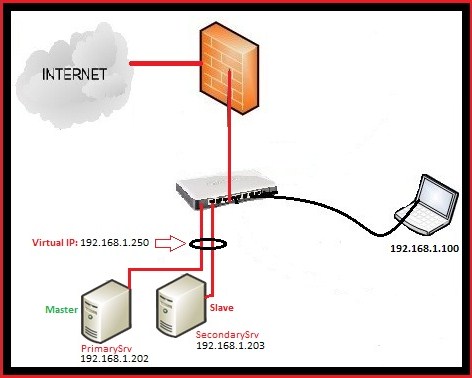
In this tutorial, I’ll show you the steps to create a simple failover cluster on Ubuntu using CARP. To make the things meaningful,we’ll create the cluster for Apache service but you can use it for any other service, which relay on IP.

Scenario:

Here is my Setup:

PrimarySrv: This is the main server, where I configured the apache and which act as Master (IP: 192.168.1.202)
SecondarySrv: 2nd Apache Server where I configured the apache exactly like on PrimarySrv (IP : 192.168.1.203)
192.168.1.250 : Virtual IP address,created using Ucarp.

Ucarp is really simple, it works like this,when the PrimarySrv is up,it will assign the virtual IP 192.168.1.250 to it, in case that PrimarySrv is down then it will assign virtual IP to the SeconadrySrv and when the PrimarySrv will come online, it will assign the virtual IP once again to it.

Lire la suite…

Ubuntu: la barre de menu disparait…

14/04/2024 Comments off

En cas de perte de la barre de menu et de la barre d’icônes, le seul moyen de les récupérer est de relancer gnome-panel.

A condition d’avoir un terminal ouvert (sinon on est un peu coincé puisqu’on ne peut plus le lancer avec Alt-F2), il suffit de lancer la commande:

killall gnome-panel

Cette commande va killer le process existant (s’il existe encore) et relancer cette partie de l’interface graphique de Ubuntu.

Plus d’infos sur Howto Restart Gnome Panel

Categories: Système Tags: , ,