En cas de perte de la barre de menu et de la barre d’icônes, le seul moyen de les récupérer est de relancer gnome-panel.
A condition d’avoir un terminal ouvert (sinon on est un peu coincé puisqu’on ne peut plus le lancer avec Alt-F2), il suffit de lancer la commande:
killall gnome-panel
Cette commande va killer le process existant (s’il existe encore) et relancer cette partie de l’interface graphique de Ubuntu.
Plus d’infos sur Howto Restart Gnome Panel
Source: My Linux Notebook
It doesn’t happen a lot but it does sometimes when the Gnome Panel freeze. If you are a former windows user you might be used to restart the computer when something in you desktop stuck. This is not the way with Linux. We can fix the problem by restarting the desktop session (restarting the X server) pressing the Ctrl+Alt+BackSpace but this will destroy everything we worked on so far. A more elegant way will be to restart only the Gnome Panel.
Getting access to the Linux command line shell
In order to restart the Gnome Panel we will need to execute the Linux kill command. Once the Gnome Panel process is killed Gnome will restart it automatically so the only thing left for us is to kill the Gnome Panel process. In order to execute the Linux kill command we will need to get access to the Linux shell. This can be done by one of the following:
- Pressing Alt+F2
- Using an opened console window using the Alt+Tab buttons to navigate to it.
- Using a console session by pressing Ctrl+Alt+F1
Killing the Gnome Panel
In each of these options we will need to execute the Linux kill command in order to kill the Gnome Panel process. There are two ways to use the kill command:
- Using the application name will kill all the applications with the same name
- Using the process id (pid) will kill only the process with the specified id.
Back to our case with the Gnome Panel, we can use both of the options.
Lire la suite…
Source: nixCraft
I am a new Debian Linux v.7.x / Ubuntu Linux LTS user. How do I reinstall a package using apt-get command line?
The Advanced Packaging Tool (APT) works on both Debian / Ubuntu and it can handle the installation and removal of software. You need use apt-get command as follows to forcefully reinstall package. The syntax is:
apt-get --reinstall install PackageNameHere
OR
apt-get --reinstall install Package1 Package2
The --reinstall option re-install packages that are already installed and at the newest version.
Pro tip: Backup configuration files before you reinstall packages. For example, if you are reinstalling nginx web server package, backup /etc/nginx/ with cp command i.e. mkdir /root/nginx.mmddyyyy/; cp -avr /etc/nginx/* /root/nginx.mmddyyy/
Examples
The following command will reinstall rsync package. Open a terminal and then type:
$ sudo apt-get --reinstall install rsync
OR
# apt-get --reinstall install rsync
Sample outputs:
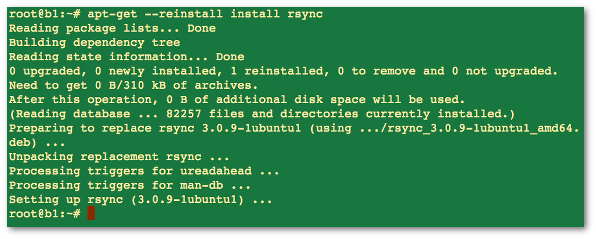
Fig.01: Debian / Ubuntu Linux reinstall a package using apt-get command
If above method failed for you, try the following syntax. Make sure you backup config file before typing the following commands. Please note that the --purge option is identical to remove except that packages are removed and purged including any configuration files are deleted too.
sudo apt-get --purge remove package1
sudo apt-get install package1
Source: nixCraft
Both Debian and Ubuntu Linux provides a number of package management tools. This article summaries package management command along with it usage and examples for you.
apt-get : APT is acronym for Advanced Package Tool. It supports installing packages over internet using ftp or http protocols. You can also upgrade all packages in a single operations, which makes it even more attractive.dpkg : Debian packaging tool which can be use to install, query, uninstall packages.
Gui tools: You can also try GUI based or high level interface to the Debian GNU/Linux package system. Following list summaries them:
aptitude: It is a text-based interface to the Debian GNU/Linux package system.synaptic: GUI front end for APT
Red hat Linux package names generally end in .rpm, similarly Debian package names end in .deb, for example:
apache_1.3.31-6_i386.deb
Where,
apache : Package name1.3.31-6 : Version numberi386 : Hardware Platform on which this package will run (i386 == intel x86 based system).deb : Extension that suggest it is a Debian package
Remember, whenever I refer .deb file it signifies complete file name, and whenever I refer package name it must be first part of .deb file. For example, when I refer to a package sudo it means sudo only and not the .deb file i.e. sudo_1.6.7p5-2_i386.deb. You can find out debian package name with the following command:
apt-cache search {package-name}
apt-cache search apache
Finally, most of the actions listed in this post are written with the assumption that they will be executed by the root user running the bash or any other modern shell. Lire la suite…
Source: nixCraft
I setup a web-server. I need to grant a user ssh access but I do not trust users. How can I limit user session to a specific directory such as /home/httpd/$USERNAME? How do I set up a ssh chroort jail on a Linux operating systems?
You can interactive shell with special root directory on a Linux or Unix-like systems. You can set the pathname (such as /home/httpd/foo) of a directory to chroot to after authentication. All components of the pathname must be root owned directories that are not writable by any other user or group. After the chroot, sshd changes the working directory to the user’s home directory.
Say hello to ChrootDirectory directive
From the sshd_config man page:
The ChrootDirectory must contain the necessary files and directo ries to support the user’s session. For an interactive session this requires at least a shell, typically sh(1), and basic /dev nodes such as null(4), zero(4), stdin(4), stdout(4), stderr(4), arandom(4) and tty(4) devices. For file transfer sessions using « sftp », no additional configuration of the environment is necessary if the in-process sftp server is used, though sessions which use logging do require /dev/log inside the chroot directory.
Lire la suite…