How do I replicate installed package selections from one Debian system to another? (Debian Wheezy)
To clone a Debian installation, use the apt-clone utility. It’s available (as a separate package, not part of the default installation) in Debian since wheezy and in Ubuntu since 12.04. On the existing machine, run
apt-clone clone foo
This creates a file foo.apt-clone.tar.gz. Copy it to the destination machine, and run
apt-get install apt-clone
apt-clone restore foo.apt-clone.tar.gz
If you’re working with an old system where apt-clone isn’t available, or if you just want to replicate the list of installed packages but not any configuration file, here are the manual steps.
- On the source machine:
cat /etc/apt/sources.list /etc/apt/sources.list.d >sources.list
pkg --get-selections >selections.list
apt-mark auto >auto.list
- On the target machine:
cp sources.list /etc/apt/
apt-get update
/usr/lib/dpkg/methods/apt/update /var/lib/dpkg/
dpkg --set-selections <selections.list
apt-get dselect-upgrade
xargs apt-mark auto <auto.list
I believe that you’re affected by an incompatible change in dpkg that first made it into wheezy. See bug #703092 for background.
The short story is that dpkg --set-selections now only accepts package names that are present in the file /var/lib/dpkg/status or /var/lib/dpkg/available. If you only use APT to manage packages, like most people, then /var/lib/dpkg/available is not kept up-to-date.
After running apt-get update and before running dpkg --set-selections and apt-get -u dselect-upgrade, run the following command:
apt-cache dumpavail >/tmp/apt.avail
dpkg --merge-avail /tmp/apt.avail
From jessie onwards, you can simplify this to
apt-cache dumpavail | dpkg --merge-avail
Alternatively, run
/usr/lib/dpkg/methods/apt/update /var/lib/dpkg/
or even simpler
apt-get install dctrl-tools
sync-available
Another simple method that doesn’t require installing an additional package but will download the package lists again is
dselect update
See the dpkg FAQ for more information. (This is mentioned in the dpkg man page, but more in a way that would remind you of the issue if you were already aware, not in a way that explains how to solve the problem!)
Note that cloning a package installation with dpkg --set-selections doesn’t restore the automatic/manual mark in APT. See Restoring all data and dependencies from dpkg –set-selections ‘*’ for more details. You can save the marks on the source system with
apt-mark showauto >auto.list
and restore them on the target system with
xargs apt-mark auto <auto.list
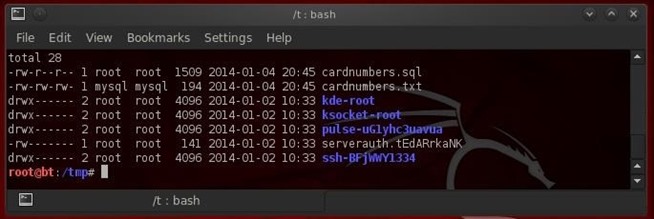 MySQL fait partie des systèmes de gestion de bases de données les plus utilisés du monde, que ça soit par le grand public ou par les professionnels. De nombreuses entreprises comme Google, Facebook, Yahoo, YouTube, Adobe, l’utilisent encore pour gagner du temps et faire tourner leurs larges sites web, malgré l’émergence et la montée en puissance
 This past weekend, we had a user who was locked out of WordPress Admin panel of their site. While we had written numerous articles covering each specific issue, we realized that we should combine all of them at one place to make it easier for others. In this article, we will show you what to do when you are locked out of WordPress Admin (wp-admin), so you can regain access to your site.
 If you have been using WordPress for a few years, then you have encountered the white screen of death at least once. The WordPress white screen of death is one of those extremely annoying problems like
 Especially that last ‘feature’ is very irritating to me. I have an external drive with about 300G of files, including lots of music and video files. My MacBook drive is only 80GB big, so i can never have the complete contents of my external drive on my MacBook. Let’s say i have 10GB of MP3 files, which i backup with Time Machine, then i remove about 5GB of files from my MacBook to free some space. What happens when the next backup round is happening? Exactly, the 5GB of files get deleted from the external disk as well. When i want to play a certain MP3 file from my external drive i now have to ‘restore’ and ‘look back in history’ to find it. Not very user-friendly.