Tmux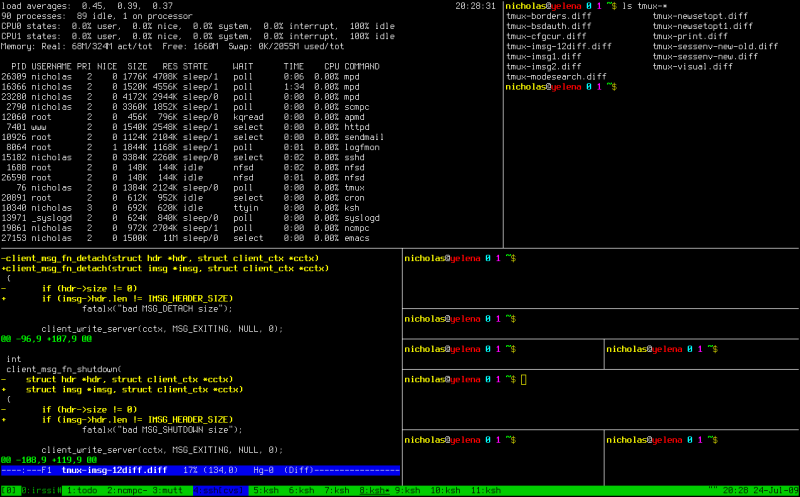 , à l’instar de Screen, est un multiplexeur de terminaux, outil permettant d’exploiter plusieurs terminaux au sein d’un seul et même affichage.
Installation
Tmux n’est pas installé par défaut. Pour l’installer à l’aide d’un utilitaire graphique il suffit d’Installer le paquets tmux.
Par l’installer avec apt-get depuis un terminal, il suffit de saisir la commande suivante :
sudo apt-get install tmux
Utilisation de tmux
Les principaux raccourcis
Tmux fait appel à l’ensemble de touches <Ctrl> <b> là ou screen fait appel à <Ctrl> <a>.
Les raccourcis et fonctions étant proches voire identiques à ceux de Screen, pour mieux les comprendre, reportez-vous à la page
Screen.
Raccourcis de base
- <Ctrl> <b> suivi de <c> : Créer un nouveau terminal dans la session tmux active
- <Ctrl> <b> suivi de <n> : Switcher entre les différents terminaux de la session
- <Ctrl> <b> suivi de <X> : Choisir un terminal spécifique (ou X est le numéro du terminal)
- <Ctrl> <b> suivi de <d> : Se détacher de la session tmux (lancer ‘tmux a’ pour s’y rattacher)
- <Ctrl> <b> suivi de <,> : Permet de renommer un terminal
- <Ctrl> <b> suivi de <w> : Affiche la liste des terminaux disponibles
- <Ctrl> <b> suivi de <t> : Afficher l’heure dans un terminal
Commandes dans un Split
- <Ctrl> <b> suivi de <« > : Split vertical du terminal courant en deux ouverture d’un terminal dans le nouveau panel
- <Ctrl> <b> suivi de <%> : Split horizontal du terminal courant en deux ouverture d’un terminal dans le nouveau panel
- <Ctrl> <b> suivi de <o> : Switcher entre les terminaux splittés
- <Ctrl> <b> suivi de <espace> : Changer l’organisation visuelle des terminaux splittés
- <Ctrl> <b> suivi de <Alt> (flèches directionnelles) : Reduire, agrandir fenêtre du split
- <Ctrl> <b> suivi de <!> : Convertir un split en terminal seul
- <Ctrl> <b> suivi de <q> : Afficher les numéros des terminaux splittés
- <Ctrl> <b> puis saisissez :join : permet de joindre un terminal seul dans un split
Par exemple, après avoir tapé le combo <Ctrl> <b> si vous saisissez
:join -v -s 3.0 -p 50
Où :
-h ou -v : pour horizontalement ou verticalement-s 3.0 : terminal 3 et volet 0 (volet si écran splitté)-p 50 : occupation à 50% de la fenêtre
Ici donc vous ajouterez verticalement, un terminal numéroté 3 et qui prendra 50% de l’espace total.
Lire la suite…
Many system administrators seem to have problems with the concepts of pipes and redirection in a shell. A coworker recently asked me how to deal with log files. How to find the information he was looking for. This article tries to shed some light on it.
Input / Output of shell commands
Many of the basic Linux/UNIX shell commands work in a similar way. Every command that you start from the shell gets three channels assigned:
- STDIN (channel 0):
Where your command draws the input from. If you don’t specify anything special this will be your keyboard input.
- STDOUT (channel 1):
Where your command’s output is sent to. If you don’t specify anything special the output is displayed in your shell.
- STDERR (channel 2):
If anything wrong happens the command will send error message here. By default the output is also displayed in your shell.
Try it yourself. The most basic command that just passes everything through from STDIN to STDOUT is the ‘cat’ command. Just open a shell and type ‘cat’ and press Enter. Nothing seems to happen. But actually ‘cat’ is waiting for input. Type something like “hello world”. Every time you press ‘Enter’ after a line ‘cat’ will output your input. So you will get an echo of everything you type. To let ‘cat’ know that you are done with the input send it an ‘end-of-file’ (EOF) signal by pressing Ctrl-D on an empty line.
The pipe(line)
A more interesting application of the STDIN/STDOUT is to chain commands together. The output of the first command becomes the input of the second command. Imagine the following chain:

The contents of the file /var/log/syslog are sent (as input) to the grep command. grep will filter the stream for lines containing the word ‘postfix’ and output that. Now the next grep picks up what was filtered and filter it further for the word ‘removed’. So now we have only lines containing both ‘postfix’ and ‘removed’. And finally these lines are sent to ‘wc -l’ which is a shell command counting the lines of some input. In my case it found 27 of such lines and printed that number to my shell. In shell syntax this reads:
cat /var/log/syslog | grep 'postfix' | grep 'removed' | wc -l
The ‘|’ character is called pipe. A sequence of such commands joined together with pipes are called pipeline.
Useless use of ‘cat’
Actually ‘cat’ is supposed to be used for concatenating files. Like “cat file1 file2”. But some administrators abuse the command to put something into a pipeline. That’s bad style and the reason why Randal L. Schwartz (a seasoned programmer) used to hand out virtual “Useless use of cat” awards. Shell commands usually can take a filename as the last argument as an input. So this would be right:
grep something /var/log/syslog | wc -l
While this works but is considered bad style:
cat /var/log/syslog | grep something | wc
Or if you knew that grep even has a “-c” option to count lines the whole task could be done with just grep:
grep -c something /var/log/syslog
Lire la suite…
Source: Daniel Miessler

lsof is the sysadmin/security über-tool. I use it most for getting network connection related information from a system, but that’s just the beginning for this powerful and too-little-known application. The tool is aptly called lsof because it “lists open files“. And remember, in UNIX just about everything (including a network socket) is a file.
Interestingly, lsof is also the Linux/Unix command with the most switches. It has so many it has to use both minuses and pluses.
usage: [-?abhlnNoOPRstUvV] [+|-c c] [+|-d s] [+D D] [+|-f[cgG]]
 [-F [f]] [-g [s]] [-i [i]] [+|-L [l]] [+|-M] [-o [o]]
 [-p s] [+|-r [t]] [-S [t]] [-T [t]] [-u s] [+|-w] [-x [fl]] [--] [names]
As you can see, lsof has a truly staggering number of options. You can use it to get information about devices on your system, what a given user is touching at any given point, or even what files or network connectivity a process is using.
Lire la suite…
Using iptables to list filtering rules is OK. Running this command in a shell loop can help but it needs that you write a shell script.
Another convenient way is to use the watch command:
watch --interval 0 'iptables -nvL'
or
sudo watch --interval 0 'iptables -nvL'
depending on whether you’re logged as super-user or not.
This will show a permanent iptables -L with a refresh interval that can be specified:
watch --interval 0 'iptables -nvL'
will refresh every second.
Typical output will be:
Every 10,0s: iptables -nvL                                                                                         Tue Nov  3 16:35:19 2015

Chain INPUT (policy DROP 44001 packets, 2444K bytes)
 pkts bytes target     prot opt in     out     source               destination
    3   160 fail2ban-ssh  tcp  --  *      *       0.0.0.0/0            0.0.0.0/0            multiport dports 22
  11M 1770M ACCEPT     all  --  *      *       0.0.0.0/0            0.0.0.0/0            state RELATED,ESTABLISHED
 107K 6878K ACCEPT     tcp  --  *      *       78.193.xx.xx         0.0.0.0/0
    0     0 ACCEPT     tcp  --  *      *       195.154.xx.xx        0.0.0.0/0
 231K   14M ACCEPT     tcp  --  *      *       213.36.xx.xx         0.0.0.0/0
    0     0 ACCEPT     tcp  --  *      *       195.154.xx.xx        0.0.0.0/0
    2    92 ACCEPT     tcp  --  *      *       0.0.0.0/0            0.0.0.0/0            tcp dpt:548
    0     0 ACCEPT     icmp --  *      *       0.0.0.0/0            0.0.0.0/0            icmptype 0
 1475  139K ACCEPT     icmp --  *      *       0.0.0.0/0            0.0.0.0/0            icmptype 8
  134  9600 ACCEPT     tcp  --  *      *       0.0.0.0/0            0.0.0.0/0            tcp spt:80
  110  6563 ACCEPT     tcp  --  *      *       0.0.0.0/0            0.0.0.0/0            tcp spt:443
    0     0 ACCEPT     tcp  --  *      *       0.0.0.0/0            0.0.0.0/0            tcp spt:943
 136K 9529K ACCEPT     udp  --  *      *       0.0.0.0/0            0.0.0.0/0            udp dpt:1194
 1423 85360 ACCEPT     tcp  --  *      *       0.0.0.0/0            0.0.0.0/0            tcp dpt:4949
    3   120 ACCEPT     tcp  --  eth0   *       0.0.0.0/0            0.0.0.0/0            tcp dpt:873 state NEW,ESTABLISHED
   24  1910 ACCEPT     udp  --  *      *       0.0.0.0/0            0.0.0.0/0            udp dpt:161
    0     0 ACCEPT     udp  --  *      *       0.0.0.0/0            0.0.0.0/0            udp dpt:162
    0     0 ACCEPT     udp  --  *      *       0.0.0.0/0            0.0.0.0/0            udp dpt:119
    2    92 ACCEPT     tcp  --  *      *       0.0.0.0/0            0.0.0.0/0            tcp dpt:3000
  156  7584 ACCEPT     tcp  --  *      *       0.0.0.0/0            0.0.0.0/0            tcp dpt:8080
 2952  177K ACCEPT     all  --  lo     *       0.0.0.0/0            0.0.0.0/0
    0     0 ACCEPT     tcp  --  *      *       172.27.xx.xx/24      0.0.0.0/0
    0     0 ACCEPT     tcp  --  as0t0  *       0.0.0.0/0            0.0.0.0/0
    3   192 ACCEPT     tcp  --  as0t1  *       0.0.0.0/0            0.0.0.0/0
Dans un réseau ethernet relié par un concentrateur (ou hub), chaque machines reçoit tous les paquets qui circulent sur le réseau. En fonctionnement normal, les cartes réseau ne réceptionnent que les paquets qui leur sont destinés, mais on peut faire en sorte qu’elles transmettent tous les paquets au système et les inspecter avec tcpdump.
Les hubs sont de moins en moins utilisés. Ils sont généralement remplacés par des commutateurs (ou switch) qui savent déterminer (en fonction de l’adresses MAC) sur quel câble il faut envoyer un paquet. Les machines ne reçoivent donc généralement que les paquets qui leur sont destinés.
L’utilitaire tcpdump permet d’inspecter les paquets qui sont reçus et transmis par une carte réseau.
Filtrage
Il est possible de sélectionner les paquets à « écouter » en fonction d’expressions. Ainsi, ne seront affichées / traitées que les informations pour lesquelles le résultat de l’expression est vérifié. Une expression est composée de primitives et d’opérateurs logiques.
Une primitive est un identifiant précédé de mots clés qui indiquent le type de l’identifiant. Par exemple la primitive src port 21 contient les éléments suivants :
- le mot clé src qui indique que l’identifiant ne porte que sur la source du paquet
- le mot clé port qui indique que l’identifiant est le port du paquet
- l’identifiant 21
La primitive correspond donc au port source 21.
Lire la suite…
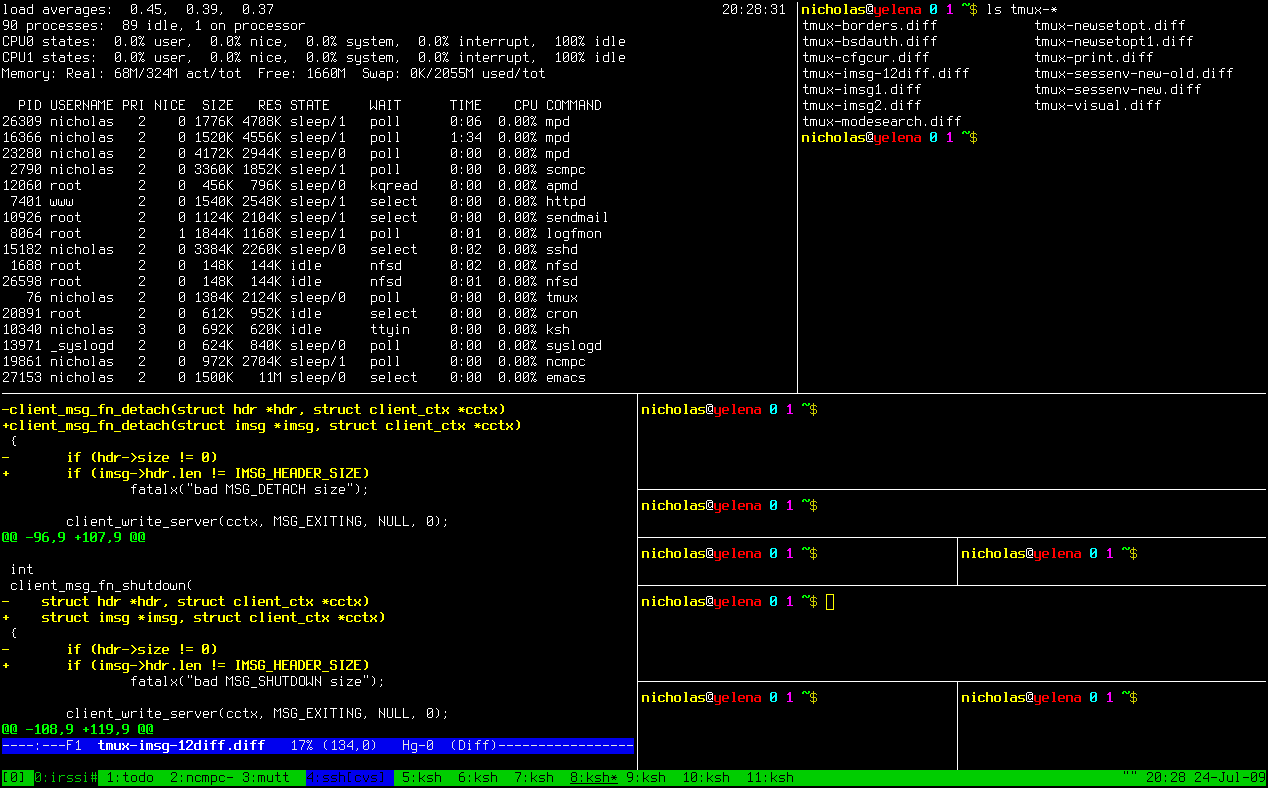 , à l’instar de Screen, est un multiplexeur de terminaux, outil permettant d’exploiter plusieurs terminaux au sein d’un seul et même affichage.