Archive

Articles taggués ‘Mac OS X’

macOS Boot Option Cheatsheet

16/10/2017 Comments off

To access some specialized Mac features you’ll need to hold down one or more keys during startup. If you’re having trouble with your Mac, this can be a great way to troubleshoot and analyze your options.

To use any of these boot keys, hold down the listed key combo as soon as you press your Mac’s power button. If you’re restarting your Mac, press and hold the keys immediately after your Mac begins to restart. Don’t release the keys until you see the described behavior.

Shift: Start your Mac in Safe Mode. Since safe mode only loads essential software, you can determine whether a system process or a user-installed application is causing your problem.

Option: Boot into Startup Manager. From here you can select different startup disks if any bootable partitions are available.

Command + R: Boot into Recovery Mode. Recovery Mode is macOS’s powerful recovery suite with a bunch of options for saving or wiping your Mac. You can use it to reinstall macOS, restore from a Time Machine backup or use Disk Utility to repair or format your hard drive.
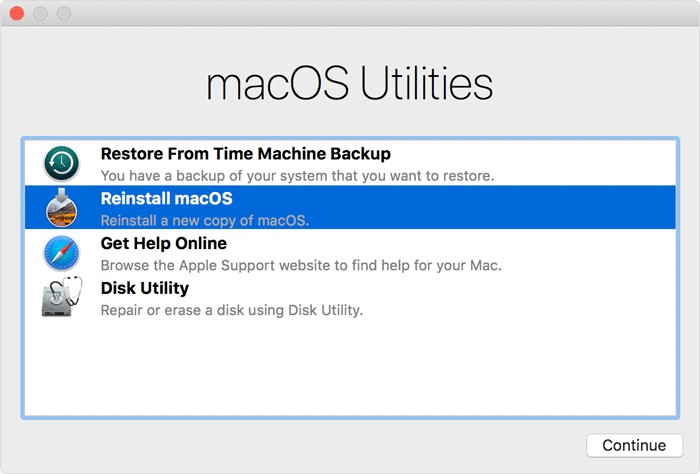
Shift + Command + Option + R: Start in Internet Recovery Mode, skipping your system’s hard drive. This allows you to reinstall the build of macOS that came with your computer from the factory. macOS might do this one on its own if your installation is so messed up that you can’t boot into Recovery Mode.

Command + S: Start in single user, command-line-only mode. This is useful for running diagnostic Terminal commands or fsck, but it can’t do much beyond that.

Command + V: Boot in verbose mode. This mode displays logging and diagnostic messages as your Macboots. If your Mac is showing the Apple logo but failing to start completely, try this step to see where in the boot process the error occurs.
Lire la suite…

Categories: Constructeur, Système Tags: ,

macOS High Sierra Supplemental Update Released for Mac Users

06/10/2017 Comments off

Apple has released the first supplemental update to macOS High Sierra 10.13, complete with bug fixes, improvements, and security fixes.

General release notes accompanying the supplemental update suggests the release includes improvements to stability, reliability, and security. Specifically, the update is said to “improve installer robustness” (it is unclear if this addresses the issue where some users are unable to download a complete macOS High Sierra installer without third party utility assistance), includes a fix for cursor graphics bugs when using Adobe InDesign, and resolves and issue with Mail app was unable to delete email from Yahoo accounts. Additionally, the update includes a security fix to address a problem where Disk Utility could be used to reveal the password of an encrypted AFPS volume, and the update also resolves a security bug relating to Keychain passwords. Complete security update release notes are below for those interested. The supplemental update is recommended for all macOS High Sierra users to install.

Mac users running macOS 10.13 High Sierra can find the update available to download and install now in the Mac App Store Updates section. The update is labeled as “macOS High Sierra 10.13 Supplemental Update”.

Note the supplemental update is separate from the beta versions of 10.13.1 currently under the beta testing programs.

Always back up a Mac before installing any system software update, including smaller bug fix updates like this macOS High Sierra Supplemental Update.

The complete security related supplemental update release notes are as follows:

macOS High Sierra 10.13 Supplemental Update
Released October 5, 2017
StorageKit
Available for: macOS High Sierra 10.13
Impact: A local attacker may gain access to an encrypted APFS volume
Description: If a hint was set in Disk Utility when creating an APFS encrypted volume, the password was stored as the hint. This was addressed by clearing hint storage if the hint was the password, and by improving the logic for storing hints.
CVE-2017-7149: Matheus Mariano of Leet Tech
Security
Available for: macOS High Sierra 10.13
Impact: A malicious application can extract keychain passwords
Description: A method existed for applications to bypass the keychain access prompt with a synthetic click. This was addressed by requiring the user password when prompting for keychain access.
CVE-2017-7150: Patrick Wardle of Synack
New downloads of macOS High Sierra 10.13 include the security content of the macOS High Sierra 10.13 Supplemental Update.

Separately, iPhone and iPad users can find iOS 11.0.2 available as an update, which also includes various bug fixes for that system software release, and watchOS 4.0.1 for Apple Watch is out as well.

Categories: Constructeur, Logiciel Tags: ,

How to Download a Full macOS High Sierra Installer App

04/10/2017 Comments off

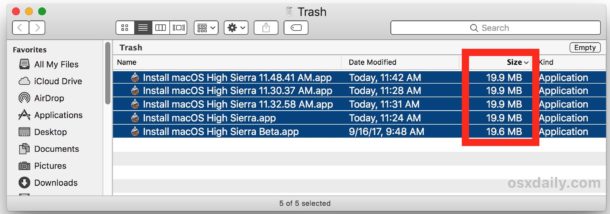
Many Mac users who are attempting to download macOS High Sierra from the Mac App Store will find that a small 19 MB version of “Install macOS High Sierra.app” downloads to the /Applications folder of the target Mac, rather than the complete 5.2 GB Installer application for macOS High Sierra. This is annoying because it prevents a single download from being used on multiple computers, plus the small installer requires an internet connection during usage to download the rest of the High Sierra update files. Additionally, the tiny 19 MB incomplete installer prevents users from being able to create a macOS High Sierra USB installer drive or other custom update options available through the command line, like skipping the APFS update.

This tutorial will show you a workaround trick that allows Mac users to download the full macOS High Sierra “Install macOS High Sierra.app” file at 5.2 GB with the complete installer tool set and all dmg files and associated Install macOS High Sierra.app/Contents/Resources/ tools, rather than the tiny incomplete truncated installer at 19 MB.

How to Download the Full “Install macOS High Sierra.app” Application

Warning: this method relies on a third party tool from an unverified third party source, if you are not comfortable with using unvetted and unverified software, and if you do not understand the risks associated with using potentially dubious software, do not follow this process. This is for advanced users only.

    1. Go to dosdude1.com here and download the High Sierra patcher application*
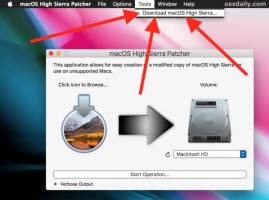
    2. Launch “MacOS High Sierra Patcher” and ignore everything about patching, instead pull down the “Tools” menu and choose “Download MacOS High Sierra”

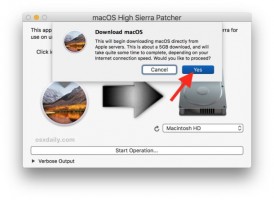
    1. Confirm that you want to download the complete macOS High Sierra install application, and then point it to a location to save on the local hard drive

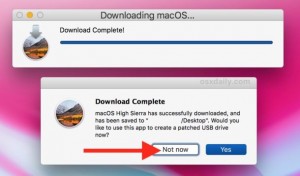
    1. The patcher app will notify you when the download is complete, when it is done downloading quit out of the patcher app

    1. Locate the “Install macOS High Sierra.app” file you downloaded, it will be the complete installer application with the full Contents/Resources/ toolkit available

* The “macOS High Sierra Patcher” application is intended for those with unsupported Macs and Hackintosh users, but any Mac user can use the app to be able to download the complete installer file from Apple servers. The source of this patcher application is a MacRumors Forums

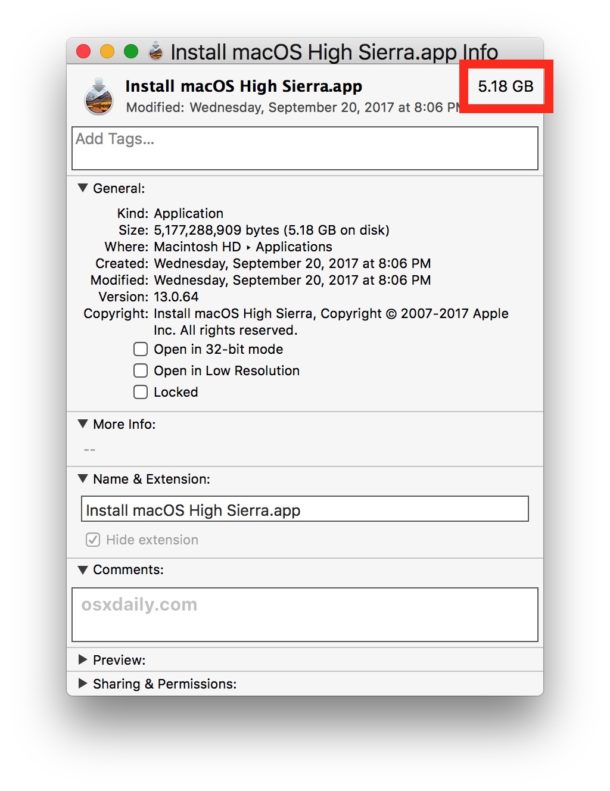
You can confirm that you have the complete Install macOS High Sierra.app application by getting info on the file, the complete installer should be around 5.2 GB rather than the tiny 19 MB incomplete installer that requires additional downloads.

The complete macOS High Sierra installer downloaded

Why do some users get a small incomplete version of macOS High Sierra installer from the App Store?

This is not yet known, but it happens with the final version of macOS High Sierra installer as well as with some of the beta versions.

It is unclear why some users will get a 19MB version of “Install macOS High Sierra.app” when downloaded from the App Store, while others users will get the complete 5.2GB version of “Install macOS High Sierra.app” when downloading from the App Store. Interestingly, once a user ends up with the 19 MB version of the incomplete installer, that seems to be the only thing that will download for that user regardless of how many times the incomplete installer app is deleted and re downloaded.

Incomplete macOS High Sierra installer

The installer size and completeness inconsistency appears random, and has no relation to disk space, beta enrollment, software catalog, and other theories seem to be incorrect as well.

How to Run MacOS Sierra in a Virtual Machine for Free, the Easy Way

15/04/2017 Comments off

Run Mac OS in Virtual Machine on a Mac

Advanced Mac users may find it useful to run macOS or Mac OS X in a virtual machine atop their existing Mac operating system. Creating a virtual machine for Mac OS is now easier than ever before, and we’ll show you how to set up easy Mac virtual machines on a Mac.

For some quick background, virtualization allows you to run another operating system in a confined virtual machine atop an existing operating system through an application layer. This means there is no disk partitioning involved, the virtualized operating system runs just like any other application on your computer. We have covered this broad topic many times before for purposes like running Windows 10 on a Mac with a VM, to running Ubuntu Linux in VirtualBox, to Snow Leopard in a VM, and others. In the guide here, we will be creating a Macintosh virtual machine for running Mac OS on top of Mac OS, which can be helpful for testing out different apps and operating system versions, amongst other purposes.

Lire la suite…

How to create a bootable macOS Sierra installer drive

31/03/2017 Comments off

Apple uses its App Store to distribute its software, like new Mac operating systems. It’s convenient, but sometimes it can take a while for a download to finish. And if you have multiple Macs, it’s inefficient to download the new OS to each and every Mac.

sierra external icon

That’s why I like to make a bootable external drive for the sole purpose of installing the Mac operating system. When I need to tend to a bunch of Macs, it’s much faster to use a bootable drive instead of going to each Mac, launching the App Store, searching for the operating system, downloading it (after entering my Apple ID), and then running the installer.

You can create a bootable USB flash drive with the macOS Sierra installer that’s now available. The installer software will take up nearly 5GB of storage space. Here’s how to create a bootable macOS Sierra installer drive.

Macworld also has bootable-install-drive instructions for El Capitan (OS X 10.11), Yosemite (OS X 10.10), Mavericks (OS X 10.9), Mountain Lion (OS X 10.8), and Lion (OS X 10.7).

Download the macOS Sierra installer

Launch the App Store app, then look for macOS Sierra in the store. (Here’s a link.) Click on the Download button, and your Mac will download the installer to your Applications folder. If it automatically launches after download, quit the installer.

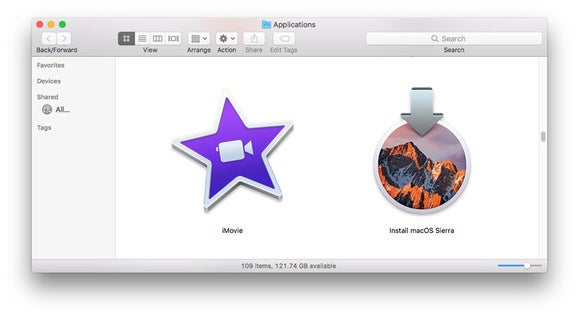
sierra beta installer app folder sierra gm
Keep the installer in the Applications folder.

If you’ve already upgraded your Mac to Sierra, the installer is removed from the Applications folder. You can download it again if you go to Purchased in the App Store. Look for macOS Sierra in the list of apps that you’ve bought, and click on the Download button. If it automatically launches after download, quit the installer.

Lire la suite…