Simple Tor Setup on Mac OS X
Source: kremalicious.com – Matthias Kretschmann
There’re many reasons you might want to browse anonymously which can be accomplished by using Tor. The setup instructions on Tor’s website are quite scattered and outdated so here’re some steps to setup Tor on OS X with a simple automated script at the end.
I’m using OS X Yosemite (10.10) for the following instructions but it should work on almost any OS X version.
Tor Browser
The most simple way to surf anonymously with Tor is to just grab the Tor Browser bundle.
But it’s based on a super old version of Firefox. And there might be more you want to do anonymously on your machine than just browsing the web, like accessing resources via the Terminal or any other app. Or just use the browser you’re used to.
For this you need to have Tor installed on your system and additionally set specific Proxy values in your network preferences after you’ve started Tor.
Install Tor
Contrary to the weirdly outdated install instructions on Tor’s website (hey, remember Macports?), installing Tor on Mac OS X is super simple with Homebrew.
In your Terminal execute:
brew install tor
Then you can start it up by running:
tor
Congratulations, you now have Tor running on your system. But none of your network traffic is routed through it yet.
In order for all your system traffic being routed through Tor you need to adjust your system’s network proxy settings whih you can either do visually in the System Preferences or programmatically via OS X’s builtin networksetup.
Set network proxy settings via System Preferences
You can do this under System Preferences > Network and creating a specific Tor network location for it:
- From Location dropdown at the top, select Edit Locations…
- Create a new location by hitting the plus button and name it Tor. Hitting Done will select the new location which is now ready to be configured
- Go to Advanced > Proxies and activate SOCKS Proxy and add those values:
- SOCKS proxy server:
localhost - Port:
9050
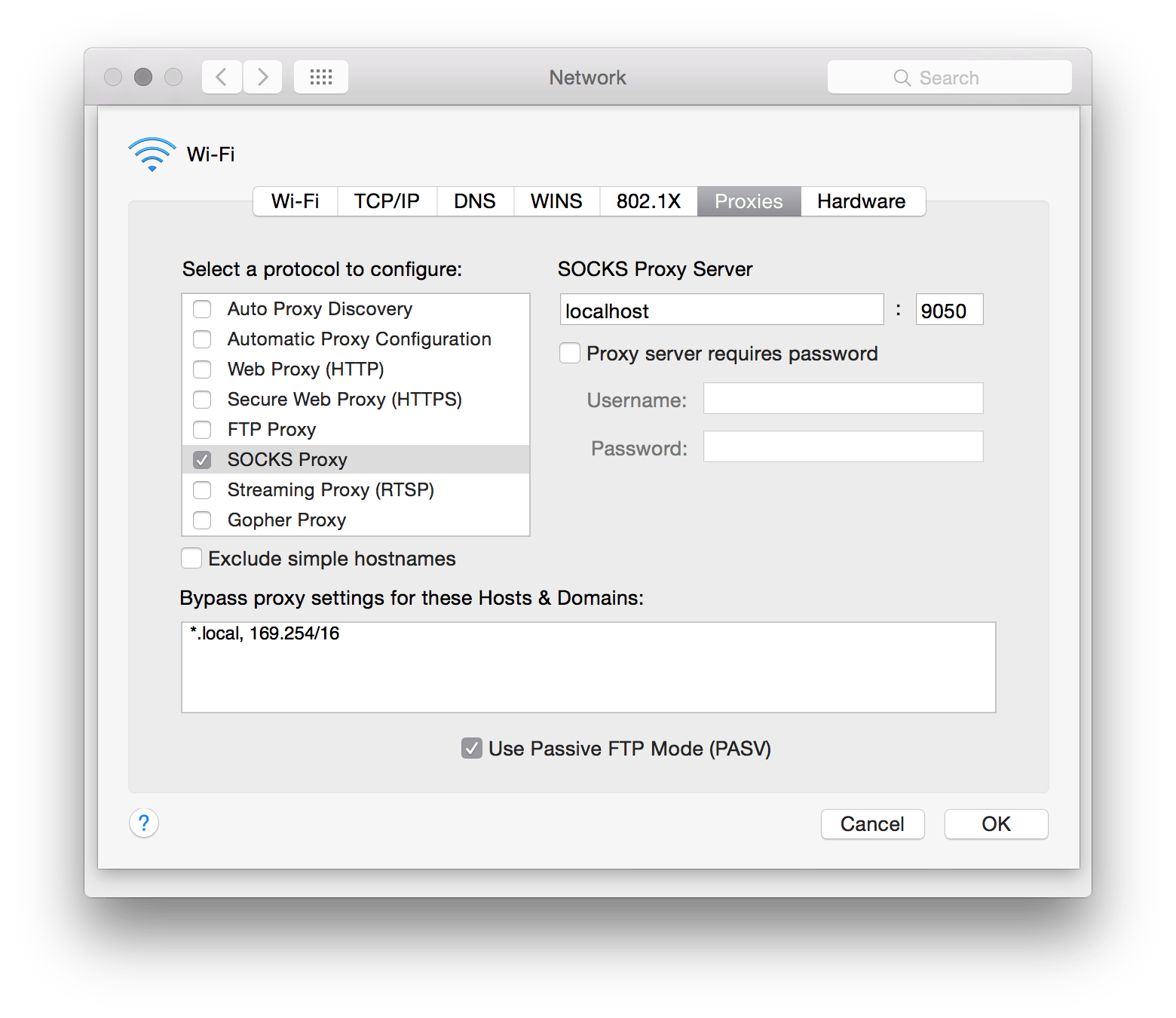
After hitting OK & Apply at the initial network screen, you can easily switch to this newly created location from your menu bar under > Location whenever you start up Tor.
Switching to the Tor location routes all network traffic on your system through Tor. Note that you have to repeat those steps for every other network interface if you use, say, Wi-Fi and Ethernet interchangeably.
 For quite some time I use my Ubuntu machine as a file and backup server for all Macs in my network which is perfectly accessible from the Finder in Mac OS X. There are some instructions available in the web for this task but all failed in my case so I wrote my own tutorial with all the steps needed for it to work properly.
 Before we proceed, it would be best to cover some basic user administration topics that will be very useful in later chapters. Adding Users