Source: linuxhomenetworking.com
Introduction
The File Transfer Protocol (FTP) is used as one of the most common means of copying files between servers over the Internet. Most web based download sites use the built in FTP capabilities of web browsers and therefore most server oriented operating systems usually include an FTP server application as part of the software suite. Linux is no exception.
This chapter will show you how to convert your Linux box into an FTP server using the default Very Secure FTP Daemon (VSFTPD) package included in Fedora.
FTP Overview
FTP relies on a pair of TCP ports to get the job done. It operates in two connection channels as I’ll explain:
FTP Control Channel, TCP Port 21: All commands you send and the ftp server’s responses to those commands will go over the control connection, but any data sent back (such as « ls » directory lists or actual file data in either direction) will go over the data connection.
FTP Data Channel, TCP Port 20: This port is used for all subsequent data transfers between the client and server.
In addition to these channels, there are several varieties of FTP.
Types of FTP
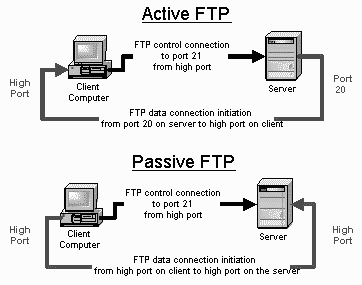
From a networking perspective, the two main types of FTP are active and passive. In active FTP, the FTP server initiates a data transfer connection back to the client. For passive FTP, the connection is initiated from the FTP client. These are illustrated in Figure 15-1.
Figure 15-1 Active And Passive FTP Illustrated
From a user management perspective there are also two types of FTP: regular FTP in which files are transferred using the username and password of a regular user FTP server, and anonymous FTP in which general access is provided to the FTP server using a well known universal login method.
Take a closer look at each type.
Active FTP
The sequence of events for active FTP is:
- Your client connects to the FTP server by establishing an FTP control connection to port 21 of the server. Your commands such as ‘ls’ and ‘get’ are sent over this connection.
- Whenever the client requests data over the control connection, the server initiates data transfer connections back to the client. The source port of these data transfer connections is always port 20 on the server, and the destination port is a high port (greater than 1024) on the client.
- Thus the ls listing that you asked for comes back over the port 20 to high port connection, not the port 21 control connection.
FTP active mode therefore transfers data in a counter intuitive way to the TCP standard, as it selects port 20 as it’s source port (not a random high port that’s greater than 1024) and connects back to the client on a random high port that has been pre-negotiated on the port 21 control connection.
Active FTP may fail in cases where the client is protected from the Internet via many to one NAT (masquerading). This is because the firewall will not know which of the many servers behind it should receive the return connection.
Passive FTP
Passive FTP works differently:
- Your client connects to the FTP server by establishing an FTP control connection to port 21 of the server. Your commands such as ls and get are sent over that connection.
- Whenever the client requests data over the control connection, the client initiates the data transfer connections to the server. The source port of these data transfer connections is always a high port on the client with a destination port of a high port on the server.
Passive FTP should be viewed as the server never making an active attempt to connect to the client for FTP data transfers. Because client always initiates the required connections, passive FTP works better for clients protected by a firewall.
As Windows defaults to active FTP, and Linux defaults to passive, you’ll probably have to accommodate both forms when deciding upon a security policy for your FTP server.
Regular FTP
By default, the VSFTPD package allows regular Linux users to copy files to and from their home directories with an FTP client using their Linux usernames and passwords as their login credentials.
VSFTPD also has the option of allowing this type of access to only a group of Linux users, enabling you to restrict the addition of new files to your system to authorized personnel.
The disadvantage of regular FTP is that it isn’t suitable for general download distribution of software as everyone either has to get a unique Linux user account or has to use a shared username and password. Anonymous FTP allows you to avoid this difficulty.
Anonymous FTP
Anonymous FTP is the choice of Web sites that need to exchange files with numerous unknown remote users. Common uses include downloading software updates and MP3s and uploading diagnostic information for a technical support engineers’ attention. Unlike regular FTP where you login with a preconfigured Linux username and password, anonymous FTP requires only a username of anonymous and your email address for the password. Once logged in to a VSFTPD server, you automatically have access to only the default anonymous FTP directory (/var/ftp in the case of VSFTPD) and all its subdirectories.
As seen in Chapter 6, « Installing Linux Software« , using anonymous FTP as a remote user is fairly straight forward. VSFTPD can be configured to support user-based and or anonymous FTP in its configuration file which you’ll see later.
Lire la suite…