Archive

Archives pour la catégorie ‘Logiciel’

Merging directories (folders) on Mac OS X

01/02/2024 Comments off

merging directoriesEvery now and then I find myself in a situation where I have a folder (I’ll call it source) of files and nested folders, possibly many levels deep, that I want to copy into another folder (which I’ll call target). target already contains some of the files and folders I’m copying, and it also has files and folders that are not present in source.

Simply copying source to target’s parent folder in the Mac OS X Finder will replace everything in target with the contents of source. This is not always what I want, and in my opinion it’s one of the biggest flaws of the Mac OS X Finder. Not just Mac OS X actually – back in the pre-Mac OS X days there was a utility called Speed Doubler that patched the Finder to add a smart replace option when copying files.

It’s possible to manually open each folder and their subfolders and copy just the files, but it can be very tedious. There are also third party software options that let you merge files when copying, and if you have Apple’s Developer Tools installed there is the FileMerge utility.

However, you can open a Terminal window and copy the files from the command line, which saves you from installing extra software. Since I keep looking up the syntax every time I need to do this I decided to document it here for future reference.

cp

One command line utility that can copy directories without replacing everything in them is cp:

cp -pRv source/ target

The pRv options do the following:

  • p preserves timestamps, flags, modes, and ownerships of files
  • R copies the entire subtree
  • v makes cp output the name of each file that is copied

Note: The / after the name of the source directory is important since it tells cp to copy the contents of the directory and not the directory itself.

rsync

You can also use rsync:

rsync -av source/ target

The av options do this:

  • a tells rsync to copy recursively and preserve file attributes
  • v makes rsync print information to the terminal window about what was copied

Just as with the cp command, the trailing slash after the source directory is important to make sure only the contents of the directory are copied.

ditto

A third option is ditto:

ditto -V source target

The V option prints information about what was copied.

Deleting files that don’t exist in the source directory

Sometimes you want a merge to delete files that exist in the target directory but not in the source directory. That’s easy with rsync (but be careful as there is no undo):

rsync -av --delete source/ target

But wait! What if the target is under version control? Won’t that delete any .svn or .git directories as well? Yep. That can be avoided by adding filters. Let’s say you want to keep all .htaccess and .svn files or directories in the target directory. This does just that:

rsync -av --delete --filter="- .htaccess" --filter="- .svn" source/ target

A useful tip when you involve delete is to add the n option at first to do a “dry run” and only show what would have been deleted. Again, be careful with delete since there is no undo.

Hoping for Finder integration

It would be great if Apple could make it possible to use the Finder to copy folders like this. It could be a secret option somewhere or invoked when you hold certain modifier keys when copying. It doesn’t matter as long as it’s possible.

Most people probably don’t need this feature every day, but when you do need it it can save lots of time. Having the feature built into the Finder would also reduce the risk of people accidentally deleting files because they don’t realise copying folders replaces everything inside them.

 
Categories: Logiciel, Système Tags: , , ,

Monitorer fail2ban

31/01/2024 Comments off

Source: arscenic.org

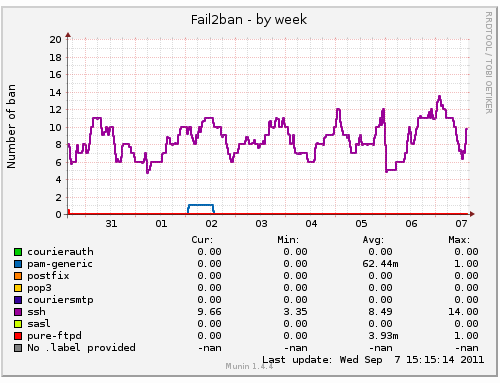
Nous avons installé fail2ban sur chacun de nos serveurs en utilisant ce tutoriel

Le script de monitoring que nous allons utiliser se trouve ici : http://blog.sinnwidrig.org/?p=50. C’est un script générique permettant de créer un graphique distinct par action de fail2ban.

On décide de placer les plugins supplémentaires pour munin dans le répertoire  /opt/share/munin/plugins
#Créer le répertoire des plugins dans le cas ou il n'existe pas déjà
sudo mkdir -p /opt/share/munin/plugins
cd /opt/share/munin/plugins
# Récupérer le script
sudo wget http://blog.sinnwidrig.org/files/fail2ban_-0.1
# Rendre exécutable le script
sudo chmod +x fail2ban_-0.1

Lire la suite…

Faire apparaitre un mot de passe en clair dans votre navigateur

30/01/2024 Comments off

CestDingueCetteCapaciteQuontLesGensABloquerSurUnDetailPlutotQueDeCapterLeMessageDeFondSnif

Si vous utilisez la fonction de mémorisation des mots de passe de votre navigateur, vous savez surement que vous pouvez consulter cette liste (en clair) via les Préférences de votre navigateur. Mais il existe une autre méthode tout aussi efficace.

Il suffit de vous rendre sur le site pour lequel vous voulez récupérer votre mot de passe… Allez, disons Facebook.

passwordblack

Là, vous voyez les petits ronds noirs qui indiquent qu’il y a un mot de passe.

Ensuite, lancez Firebug ou l’inspecteur natif de Firefox, et placez-vous sur le champ password.

fb

Remplacez alors la valeur de l’attribut « Type » du champs par « text »

text

Et voilà… Le mot de passe va apparaitre en clair.

reveal

Source
Read more at http://korben.info/mot-de-passe-en-clair.html#scd3R8hdIYL2PKmL.99

Categories: Logiciel, Système Tags: , ,

Monitoring de serveurs avec Munin

30/01/2024 Comments off

Installation

Munin est un outil de monitoring fonctionnant par script et collectant des informations sur le systeme à interval régulier (5min par défaut), Munin affiche des graphiques concernants des informations qu’il collecte dans /proc. Les graphiques sont accessibles via apache, il faut donc également sécuriser l’accès à celui-ci. Il faut installer trois choses différentes :monitoring munin

  • le programme munin,
  • le daemon munin-node qui va monitorer les informations système,
  • et apache2 qui nous permettra de visualiser les graphiques.

Lire la suite…

Basic munin plugins for Snort

27/01/2024 Comments off

munin pluginsHere are some basic munin plugins for snort using perfmon (Enable preprocessor perfmonitor in snort.conf)
The snort.conf entry should look something like:

preprocessor perfmonitor: time 300 file /your/path/to/snort.stats pktcnt 5000

(Read the snort docs for more info on performance issues etc.)

Drop Rate:
http://download.gamelinux.org/snort/snort_drop_rate

Pattern Matching:
http://download.gamelinux.org/snort/snort_pattern_match

Traffic speed:
http://download.gamelinux.org/snort/snort_traffic

Alerts:
http://download.gamelinux.org/snort/snort_alerts

Avg KBytes/pkt:
http://download.gamelinux.org/snort/snort_bytes_pkt

Avg Pkts/sec:
http://download.gamelinux.org/snort/snort_pkts

Edit any one of them, to graph what you want from perfmon output. It should be easy!

And now I will test them myself!

Update:
Here is a picture to give you an idea on how the graphs looks:
http://download.gamelinux.org/snort/Snort-Munin-Plugins.pngsource: http://www.gamelinux.org/?p=32

source: GAMELINUX