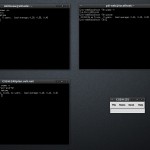
Cluster ssh
Cluster ssh est un outil merveilleux ! Combien de fois ai-je du retaper les mêmes commandes dans deux fenêtres shell différentes sous prétexte que les serveurs faisaient la même chose… Je pense à mes deux serveurs DNS, par exemple.
Évidemment, il faut faire attention à ce qu’on tape car la moindre erreur est reproduite en double… Mais quel bonheur de faire deux fois le travail et surtout d’avoir des configurations identiques quand on le désire.
Autre avantage: si on ouvre plusieurs sessions ssh dans la même commande shell, cssh redimensionne les fenêtres automatiquement.
Attention: si vous ajouter des fenêtres après coup sur Ubuntu, il les superposera sur les précédentes ce qui n’est pas folichon… Il faut prévoir votre nombre de session au départ. Par contre, sur Mac OS X, l’excellent csshX fait le boulot correctement.
Find Files Based on Access / Modification / Change Time
You can find files based on following three file time attribute.
Access time of the file. Access time gets updated when the file accessed.
Modification time of the file. Modification time gets updated when the file content modified.
Change time of the file. Change time gets updated when the inode data changes. Lire la suite…
.DS_Store
Here is the command to stop the creation of .DS_Store Directories that pollute your network storage resources. For For Mac OS X Lion you need to use:
defaults write com.apple.desktopservices DSDontWriteNetworkStores true
Now you must Logoff or Restart.
.AppleDouble
To stop the creation of .AppleDouble folders you need to edit your AFP service configuration. There is usually a « No AppleDouble » or « Enable AppleDouble » configuration setting that needs to be set true (For the NO option) or set to false (For the Enable Option).
Note: In FreeNAS 8.0.4 it seems that the .AppleDouble directories are created anyway regardless of setting. But at least they seem to be empty and can be removed (rm -r /path/).
The Who, What, and When
The .AppleDouble Directories are used by Mac OS X to store Extended Attributes (exattr) for files residing on filesystems that are not formatted HFS+. They are most commonly seen when moving a flash drive from your Mac to your Windows Machine.
The .DS_Store Directories store Finder Information. Such as in « Get File Information » you can access a « Comments » field. If you provide information on the file i the comment it is stored and Finder Information. If this directory is missing on remote storage, other Mac users would not be able to see the comment you created.
Why get rid of them?
On network storage you can have the same share presented over AFP (Apple Filing Protocol) andCIFS (Common Internet File System). Windows users that connect over CIFS can see the extra Apple directories. The files often copy the name of the original file and prefix it with « ._ ». Windows users can mistakenly access these files and think their data is corrupt.
Apart from the basic operation of looking for files under a directory structure, you can also perform several practical operations using find command that will make your command line journey easy.
In this article, let us review 15 practical examples of Linux find command that will be very useful to both newbies and experts. Lire la suite…
When you are using Linux command line frequently, using the history effectively can be a major productivity boost. In fact, once you have mastered the 15 examples that I’ve provided here, you’ll find using command line more enjoyable and fun.
1. Display timestamp using HISTTIMEFORMAT
Typically when you type history from command line, it displays the command# and the command. For auditing purpose, it may be beneficial to display the timepstamp along with the command as shown below.
# export HISTTIMEFORMAT='%F %T '
# history | more
1 2008-08-05 19:02:39 service network restart
2 2008-08-05 19:02:39 exit
3 2008-08-05 19:02:39 id
4 2008-08-05 19:02:39 cat /etc/redhat-release
2. Search the history using Control+R
Lire la suite…
