I type ‘find . -type d -iname foo -delete‘ command to find the foo directories and delete them. However, I am getting an error message that read as find: cannot delete './hourly.4/data/foo': Directory not empty on Linux server. How do delete directories based on find command output on Linux or Unix-like system?
The -delete option remove the DIRECTORY(ies), if they are empty. You need to use the -execoption to delete all directories and its contents. The syntax is as follows.
Find command syntax to delete dirs
Try: find /dir/to/search/ -type d -name "dirName" -exec rm -rf {} + OR find /dir/to/search/ -type d -name "dirName" -exec rm -rf \;
Warning: Be careful with the rm command when using with find. You may end up deleting unwanted data.
Find will execute given command when it finds files or dirs. For example: find . -type d -name "foo" -exec rm -rf {} + OR find . -type d -name "bar" -exec rm -rf "{}" \; Sample outputs:
You can find directories that are at least four levels deep in the working directory /backups/: find /backups/ -type d -name "bar" -depth +4 -print0 -exec rm -rf {} +
Find and xargs
The syntax is as follows to find and delete directories on Linux/Unix system: ## delete all empty dirs ## find /path/to/dir/ -type d -empty -print0 | xargs -0 -I {} /bin/rm -rf "{}" ## delete all foo dirs including subdirs in /backups/ find /backups/ -type d -name "foo*" -print0 | xargs -0 -I {} /bin/rm -rf "{}" The second command is secure and fast version as it deals with weird dir names such as:
I want to display a countdown before purging cache from CDN network. Is there an existing command to show a conuntdown from 30..1 as 30,29,28,…1 on Linux or Unix bash shell script?
There are various ways to show a countdown in your shell scripts.
First define your message: msg="Purging cache please wait..." Now clear the screen and display the message at row 10 and column 5 using tput: clear tput cup 10 5 Next you need to display the message: echo -n "$msg" Find out the length of string: l=${#msg} Calculate the next column: l=$(( l+5 )) Finally use a bash for loop to show countdown: for i in {30..01} do tput cup 10 $l echo -n "$i" sleep 1 done echo Here is a complete shell script:
#!/bin/bash# Purpose: Purge urls from Cloudflare Cache# Author: Vivek Gite {www.cyberciti.biz} under GPL v2.x+# --------------------------------------------------------# Set me first #zone_id="My-ID"api_key="My_API_KEY"email_id="My_EMAIL_ID"row=2
col=2
urls="$@"
countdown(){msg="Purging ${1}..."clear
tput cup $row$colecho-n"$msg"l=${#msg}l=$(( l+$col))for i in{30..1}do
tput cup $row$lecho-n"$i"sleep 1
done}# Do itfor u in$urlsdoamp_url="${u}amp/"
curl -X DELETE "https://api.cloudflare.com/client/v4/zones/${zone_id}/purge_cache" \
-H"X-Auth-Email: ${email_id}" \
-H"X-Auth-Key: ${api_key}" \
-H"Content-Type: application/json" \
--data"{\"files\":[\"${u}\",\"${amp_url}\"]}"&>/dev/null && countdown "$u"doneecho
How do I replace a string with another string in all files? For example, ~/foo directory has 100s of text file and I’d like to find out xyz string and replace with abc. I’d like to use sed or any other tool to replace all occurrence of the word.
The sed command is designed for this kind of work i.e. find and replace strings or words from a text file under Apple OX, *BSD, Linux, and UNIX like operating systems. The perl can be also used as described below.
sed replace word / string syntax
The syntax is as follows: sed -i 's/old-word/new-word/g' *.txt
GNU sed command can edit files in place (makes backup if extension supplied) using the -i option. If you are using an old UNIX sed command version try the following syntax:
sed 's/old/new/g' input.txt > output.txt
You can use old sed syntax along with bash for loop:
#!/bin/bashOLD="xyz"NEW="abc"DPATH="/home/you/foo/*.txt"BPATH="/home/you/bakup/foo"TFILE="/tmp/out.tmp.$$"[!-d$BPATH]&&mkdir-p$BPATH|| :
for f in$DPATHdoif[-f$f-a-r$f]; then/bin/cp-f$f$BPATHsed"s/$OLD/$NEW/g""$f">$TFILE&&mv$TFILE"$f"elseecho"Error: Cannot read $f"fidone/bin/rm$TFILE
A Note About Bash Escape Character
A non-quoted backslash \ is the Bash escape character. It preserves the literal value of the next character that follows, with the exception of newline. If a \newline pair appears, and the backslash itself is not quoted, the \newline is treated as a line continuation (that is, it is removed from the input stream and effectively ignored). This is useful when you would like to deal with UNIX paths. In this example, the sed command is used to replace UNIX path “/nfs/apache/logs/rawlogs/access.log” with “__DOMAIN_LOG_FILE__”:
#!/bin/bash## Our path_r1="/nfs/apache/logs/rawlogs/access.log"## Escape path for sed using bash find and replace _r1="${_r1//\//\\/}"# replace __DOMAIN_LOG_FILE__ in our sample.awstats.confsed-e"s/__DOMAIN_LOG_FILE__/${_r1}/"/nfs/conf/awstats/sample.awstats.conf >/nfs/apache/logs/awstats/awstats.conf
# call awstats/usr/bin/awstats -c/nfs/apache/logs/awstats/awstats.conf
linuxconfig.org:~$ which bash > hello-world.sh linuxconfig.org:~$ vi hello-world.sh linuxconfig.org:~$ chmod +x hello-world.sh linuxconfig.org:~$ ./hello-world.sh Hello World linuxconfig.org:~$
00:00
First you need to find out where is your bash interpreter located. Enter the following into your command line:
$ which bash
Open up you favorite text editor and create file called hello_world.sh. Insert the following lines to a file:
NOTE:Every bash shell script in this tutorial starts with shebang: »#! » which is not read as a comment. First line is also a place where you put your interpreter which is in this case: /bin/bash.
Here is our first bash shell script example:
#!/bin/bash
# declare STRING variable
STRING="Hello World"
#print variable on a screen
echo $STRING
Navigate to a directory where your hello_world.sh is located and make the file executable:
$ chmod +x hello_world.sh
Now you are ready to execute your first bash script:
./hello_world.sh
Simple Backup bash shell script
#!/bin/bash
tar -czf myhome_directory.tar.gz /home/linuxconfig
Variables
In this example we declare simple bash variable and print it on the screen ( stdout ) with echo command.
#!/bin/bash
 STRING="HELLO WORLD!!!"
 echo $STRING
Your backup script and variables:
#!/bin/bash
 OF=myhome_directory_$(date +%Y%m%d).tar.gz
 tar -czf $OF /home/linuxconfig
Global vs. Local variables
#!/bin/bash
#Define bash global variable
#This variable is global and can be used anywhere in this bash script
VAR="global variable"
function bash {
#Define bash local variable
#This variable is local to bash function only
local VAR="local variable"
echo $VAR
}
echo $VAR
bash
# Note the bash global variable did not change
# "local" is bash reserved word
echo $VAR
Passing arguments to the bash script
#!/bin/bash
# use predefined variables to access passed arguments
#echo arguments to the shell
echo $1 $2 $3 ' -> echo $1 $2 $3'

# We can also store arguments from bash command line in special array
args=("$@")
#echo arguments to the shell
echo ${args[0]} ${args[1]} ${args[2]} ' -> args=("$@"); echo ${args[0]} ${args[1]} ${args[2]}'

#use $@ to print out all arguments at once
echo $@ ' -> echo $@'

# use $# variable to print out
# number of arguments passed to the bash script
echo Number of arguments passed: $# ' -> echo Number of arguments passed: $#'
/arguments.sh Bash Scripting Tutorial
Executing shell commands with bash
#!/bin/bash
# use backticks " ` ` " to execute shell command
echo `uname -o`
# executing bash command without backticks
echo uname -o
Reading User Input
#!/bin/bash

echo -e "Hi, please type the word: \c "
read  word
echo "The word you entered is: $word"
echo -e "Can you please enter two words? "
read word1 word2
echo "Here is your input: \"$word1\" \"$word2\""
echo -e "How do you feel about bash scripting? "
# read command now stores a reply into the default build-in variable $REPLY
read
echo "You said $REPLY, I'm glad to hear that! "
echo -e "What are your favorite colours ? "
# -a makes read command to read into an array
read -a colours
echo "My favorite colours are also ${colours[0]}, ${colours[1]} and ${colours[2]}:-)"
Bash Trap Command
#!/bin/bash
# bash trap command
trap bashtrap INT
# bash clear screen command
clear;
# bash trap function is executed when CTRL-C is pressed:
# bash prints message => Executing bash trap subrutine !
bashtrap()
{
    echo "CTRL+C Detected !...executing bash trap !"
}
# for loop from 1/10 to 10/10
for a in `seq 1 10`; do
    echo "$a/10 to Exit."
    sleep 1;
done
echo "Exit Bash Trap Example!!!"
Arrays
Declare simple bash array
#!/bin/bash
#Declare array with 4 elements
ARRAY=( 'Debian Linux' 'Redhat Linux' Ubuntu Linux )
# get number of elements in the array
ELEMENTS=${#ARRAY[@]}

# echo each element in array
# for loop
for (( i=0;i<$ELEMENTS;i++)); do
    echo ${ARRAY[${i}]}
done
Read file into bash array
#!/bin/bash
# Declare array
declare -a ARRAY
# Link filedescriptor 10 with stdin
exec 10<&0
# stdin replaced with a file supplied as a first argument
exec < $1
let count=0

while read LINE; do

    ARRAY[$count]=$LINE
    ((count++))
done

echo Number of elements: ${#ARRAY[@]}
# echo array's content
echo ${ARRAY[@]}
# restore stdin from filedescriptor 10
# and close filedescriptor 10
exec 0<&10 10<&-
Please note the spacing inside the [ and ] brackets! Without the spaces, it won’t work!
#!/bin/bash
directory="./BashScripting"

# bash check if directory exists
if [ -d $directory ]; then
	echo "Directory exists"
else
	echo "Directory does not exists"
fi
Nested if/else
#!/bin/bash

# Declare variable choice and assign value 4
choice=4
# Print to stdout
 echo "1. Bash"
 echo "2. Scripting"
 echo "3. Tutorial"
 echo -n "Please choose a word [1,2 or 3]? "
# Loop while the variable choice is equal 4
# bash while loop
while [ $choice -eq 4 ]; do

# read user input
read choice
# bash nested if/else
if [ $choice -eq 1 ] ; then

        echo "You have chosen word: Bash"

else

        if [ $choice -eq 2 ] ; then
                 echo "You have chosen word: Scripting"
        else

                if [ $choice -eq 3 ] ; then
                        echo "You have chosen word: Tutorial"
                else
                        echo "Please make a choice between 1-3 !"
                        echo "1. Bash"
                        echo "2. Scripting"
                        echo "3. Tutorial"
                        echo -n "Please choose a word [1,2 or 3]? "
                        choice=4
                fi
        fi
fi
done
Bash Comparisons
Arithmetic Comparisons
-lt
<
-gt
>
-le
<=
-ge
>=
-eq
==
-ne
!=
#!/bin/bash
# declare integers
NUM1=2
NUM2=2
if [ $NUM1 -eq $NUM2 ]; then
	echo "Both Values are equal"
else
	echo "Values are NOT equal"
fi
#!/bin/bash
# declare integers
NUM1=2
NUM2=1
if [ $NUM1 -eq $NUM2 ]; then
	echo "Both Values are equal"
else
	echo "Values are NOT equal"
fi
#!/bin/bash
# declare integers
NUM1=2
NUM2=1
if   [ $NUM1 -eq $NUM2 ]; then
	echo "Both Values are equal"
elif [ $NUM1 -gt $NUM2 ]; then
	echo "NUM1 is greater then NUM2"
else
	echo "NUM2 is greater then NUM1"
fi
String Comparisons
=
equal
!=
not equal
<
less then
>
greater then
-n s1
string s1 is not empty
-z s1
string s1 is empty
#!/bin/bash
#Declare string S1
S1="Bash"
#Declare string S2
S2="Scripting"
if [ $S1 = $S2 ]; then
	echo "Both Strings are equal"
else
	echo "Strings are NOT equal"
fi
#!/bin/bash
#Declare string S1
S1="Bash"
#Declare string S2
S2="Bash"
if [ $S1 = $S2 ]; then
	echo "Both Strings are equal"
else
	echo "Strings are NOT equal"
fi
Bash File Testing
-b filename
Block special file
-c filename
Special character file
-d directoryname
Check for directory existence
-e filename
Check for file existence
-f filename
Check for regular file existence not a directory
-G filename
Check if file exists and is owned by effective group ID.
-g filename
true if file exists and is set-group-id.
-k filename
Sticky bit
-L filename
Symbolic link
-O filename
True if file exists and is owned by the effective user id.
-r filename
Check if file is a readable
-S filename
Check if file is socket
-s filename
Check if file is nonzero size
-u filename
Check if file set-ser-id bit is set
-w filename
Check if file is writable
-x filename
Check if file is executable
#!/bin/bash
file="./file"
if [ -e $file ]; then
	echo "File exists"
else
	echo "File does not exists"
fi
Similarly for example we can use while loop to check if file does not exists. This script will sleep until file does exists. Note bash negator « ! » which negates the -e option.
#!/bin/bash

while [ ! -e myfile ]; do
# Sleep until file does exists/is created
sleep 1
done
Loops
Bash for loop
#!/bin/bash

# bash for loop
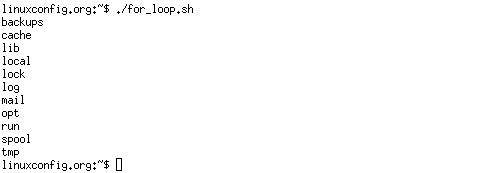
for f in $( ls /var/ ); do
	echo $f
done
Running for loop from bash shell command line:
$ for f in $( ls /var/ ); do echo $f; done
Bash while loop
#!/bin/bash
COUNT=6
# bash while loop
while [ $COUNT -gt 0 ]; do
	echo Value of count is: $COUNT
	let COUNT=COUNT-1
done
Bash until loop
#!/bin/bash
COUNT=0
# bash until loop
until [ $COUNT -gt 5 ]; do
        echo Value of count is: $COUNT
        let COUNT=COUNT+1
done
Control bash loop with
Here is a example of while loop controlled by standard input. Until the redirection chain from STDOUT to STDIN to the read command exists the while loop continues.
#!/bin/bash
# This bash script will locate and replace spaces
# in the filenames
DIR="."
# Controlling a loop with bash read command by redirecting STDOUT as
# a STDIN to while loop
# find will not truncate filenames containing spaces
find $DIR -type f | while read file; do
# using POSIX class [:space:] to find space in the filename
if [[ "$file" = *[[:space:]]* ]]; then
# substitute space with "_" character and consequently rename the file
mv "$file" `echo $file | tr ' ' '_'`
fi;
# end of while loop
done
Bash Functions
!/bin/bash
# BASH FUNCTIONS CAN BE DECLARED IN ANY ORDER
function function_B {
        echo Function B.
}
function function_A {
        echo $1
}
function function_D {
        echo Function D.
}
function function_C {
        echo $1
}
# FUNCTION CALLS
# Pass parameter to function A
function_A "Function A."
function_B
# Pass parameter to function C
function_C "Function C."
function_D
Bash Select
#!/bin/bash

PS3='Choose one word: '

# bash select
select word in "linux" "bash" "scripting" "tutorial"
do
  echo "The word you have selected is: $word"
# Break, otherwise endless loop
  break
done

exit 0
Case statement conditional
#!/bin/bash
echo "What is your preferred programming / scripting language"
echo "1) bash"
echo "2) perl"
echo "3) phyton"
echo "4) c++"
echo "5) I do not know !"
read case;
#simple case bash structure
# note in this case $case is variable and does not have to
# be named case this is just an example
case $case in
    1) echo "You selected bash";;
    2) echo "You selected perl";;
    3) echo "You selected phyton";;
    4) echo "You selected c++";;
    5) exit
esac
Bash quotes and quotations
Quotations and quotes are important part of bash and bash scripting. Here are some bash quotes and quotations basics.
Escaping Meta characters
Before we start with quotes and quotations we should know something about escaping meta characters. Escaping will suppress a special meaning of meta characters and therefore meta characters will be read by bash literally. To do this we need to use backslash « \ » character. Example:
#!/bin/bash

#Declare bash string variable
BASH_VAR="Bash Script"

# echo variable BASH_VAR
echo $BASH_VAR

#when meta character such us "$" is escaped with "\" it will be read literally
echo $BASH_VAR

# backslash has also special meaning and it can be suppressed with yet another "\"
echo "\"
Single quotes
Single quotes in bash will suppress special meaning of every meta characters. Therefore meta characters will be read literally. It is not possible to use another single quote within two single quotes not even if the single quote is escaped by backslash.
#!/bin/bash

 #Declare bash string variable
 BASH_VAR="Bash Script"

 # echo variable BASH_VAR
 echo $BASH_VAR

 # meta characters special meaning in bash is suppressed when  using single quotes
 echo '$BASH_VAR  "$BASH_VAR"'
Double Quotes
Double quotes in bash will suppress special meaning of every meta characters except « $ », « \ » and « ` ». Any other meta characters will be read literally. It is also possible to use single quote within double quotes. If we need to use double quotes within double quotes bash can read them literally when escaping them with « \ ». Example:
#!/bin/bash

#Declare bash string variable
BASH_VAR="Bash Script"

# echo variable BASH_VAR
echo $BASH_VAR

# meta characters and its special meaning in bash is
# suppressed when using double quotes except "$", "\" and "`"

echo "It's $BASH_VAR  and \"$BASH_VAR\" using backticks: `date`"
Bash quoting with ANSI-C style
There is also another type of quoting and that is ANSI-C. In this type of quoting characters escaped with « \ » will gain special meaning according to the ANSI-C standard.
\a
alert (bell)
\b
backspace
\e
an escape character
\f
form feed
\n
newline
\r
carriage return
\t
horizontal tab
\v
vertical tab
\\
backslash
\`
single quote
\nnn
octal value of characters ( see [http://www.asciitable.com/ ASCII table] )
\xnn
hexadecimal value of characters ( see [http://www.asciitable.com/ ASCII table] )
The syntax fo ansi-c bash quoting is: $ » . Here is an example:
#!/bin/bash

# as a example we have used \n as a new line, \x40 is hex value for @
# and  is octal value for .
echo $'web: www.linuxconfig.org\nemail: web\x40linuxconfigorg'
#!/bin/bash

echo '### let ###'
# bash addition
let ADDITION=3+5
echo "3 + 5 =" $ADDITION

# bash subtraction
let SUBTRACTION=7-8
echo "7 - 8 =" $SUBTRACTION

# bash multiplication
let MULTIPLICATION=5*8
echo "5 * 8 =" $MULTIPLICATION

# bash division
let DIVISION=4/2
echo "4 / 2 =" $DIVISION

# bash modulus
let MODULUS=9%4
echo "9 % 4 =" $MODULUS

# bash power of two
let POWEROFTWO=2**2
echo "2 ^ 2 =" $POWEROFTWO


echo '### Bash Arithmetic Expansion ###'
# There are two formats for arithmetic expansion: $[ expression ]
# and $(( expression #)) its your choice which you use

echo 4 + 5 = $((4 + 5))
echo 7 - 7 = $[ 7 - 7 ]
echo 4 x 6 = $((3 * 2))
echo 6 / 3 = $((6 / 3))
echo 8 % 7 = $((8 % 7))
echo 2 ^ 8 = $[ 2 ** 8 ]


echo '### Declare ###'

echo -e "Please enter two numbers \c"
# read user input
read num1 num2
declare -i result
result=$num1+$num2
echo "Result is:$result "

# bash convert binary number 10001
result=2#10001
echo $result

# bash convert octal number 16
result=8#16
echo $result

# bash convert hex number 0xE6A
result=16#E6A
echo $result
Round floating point number
#!/bin/bash
# get floating point number
floating_point_number=3.3446
echo $floating_point_number
# round floating point number with bash
for bash_rounded_number in $(printf %.0f $floating_point_number); do
echo "Rounded number with bash:" $bash_rounded_number
done
Bash floating point calculations
#!/bin/bash
# Simple linux bash calculator
echo "Enter input:"
read userinput
echo "Result with 2 digits after decimal point:"
echo "scale=2; ${userinput}" | bc
echo "Result with 10 digits after decimal point:"
echo "scale=10; ${userinput}" | bc
echo "Result as rounded integer:"
echo $userinput | bc
Redirections
STDOUT from bash script to STDERR
#!/bin/bash

 echo "Redirect this STDOUT to STDERR" 1>&2
To prove that STDOUT is redirected to STDERR we can redirect script’s output to file:
STDERR from bash script to STDOUT
#!/bin/bash

 cat $1 2>&1
To prove that STDERR is redirected to STDOUT we can redirect script’s output to file:
stdout to screen
The simple way to redirect a standard output ( stdout ) is to simply use any command, because by default stdout is automatically redirected to screen. First create a file « file1 »:
$ touch file1
$ ls file1
file1
As you can see from the example above execution of ls command produces STDOUT which by default is redirected to screen.
stdout to file
The override the default behavior of STDOUT we can use « > » to redirect this output to file:
$ ls file1 > STDOUT
$ cat STDOUT
file1
stderr to file
By default STDERR is displayed on the screen:
$ ls
file1  STDOUT
$ ls file2
ls: cannot access file2: No such file or directory
In the following example we will redirect the standard error ( stderr ) to a file and stdout to a screen as default. Please note that STDOUT is displayed on the screen, however STDERR is redirected to a file called STDERR:
$ ls
file1  STDOUT
$ ls file1 file2 2> STDERR
file1
$ cat STDERR
ls: cannot access file2: No such file or directory
stdout to stderr
It is also possible to redirect STDOUT and STDERR to the same file. In the next example we will redirect STDOUT to the same descriptor as STDERR. Both STDOUT and STDERR will be redirected to file « STDERR_STDOUT ».
$ ls
file1  STDERR  STDOUT
$ ls file1 file2 2> STDERR_STDOUT 1>&2
$ cat STDERR_STDOUT
ls: cannot access file2: No such file or directory
file1
File STDERR_STDOUT now contains STDOUT and STDERR.
stderr to stdout
The above example can be reversed by redirecting STDERR to the same descriptor as SDTOUT:
$ ls
file1  STDERR  STDOUT
$ ls file1 file2 > STDERR_STDOUT 2>&1
$ cat STDERR_STDOUT
ls: cannot access file2: No such file or directory
file1
stderr and stdout to file
Previous two examples redirected both STDOUT and STDERR to a file. Another way to achieve the same effect is illustrated below:
$ ls
file1  STDERR  STDOUT
$ ls file1 file2 &> STDERR_STDOUT
$ cat STDERR_STDOUT
ls: cannot access file2: No such file or directory
file1
or
ls file1 file2 >& STDERR_STDOUT
$ cat STDERR_STDOUT
ls: cannot access file2: No such file or directory
file1
Vous venez d’apprendre à utiliser un éditeur de texte puissant comme Vim. Cela va vous être particulièrement utile pour les chapitres à venir.
Entrons maintenant dans le vif du sujet : la programmation shell. De quoi s’agit-il ?
Imaginez un minilangage de programmation intégré à Linux. Ce n’est pas un langage aussi complet que peuvent l’être le C, le C++ ou le Java par exemple, mais cela permet d’automatiser la plupart de vos tâches : sauvegarde des données, surveillance de la charge de votre machine, etc.
On aurait très bien pu faire tout cela en créant un programme en C par exemple. Le gros avantage du langage shell est d’être totalement intégré à Linux : il n’y a rien à installer, rien à compiler. Et surtout : vous avez très peu de nouvelles choses à apprendre. En effet, toutes les commandes que l’on utilise dans les scripts shell sont des commandes du système que vous connaissez déjà : ls, cut, grep, sort…
On parlera beaucoup de shell dans cette section. De quoi s’agit-il exactement ? Nous répondrons à cette question en premier.
Ensuite, nous réaliserons notre tout premier script shell qui affiche un message à l’écran… et nous pourrons alors passer aux choses sérieuses dès le chapitre suivant !
Qu’est-ce qu’un shell ?
Dès le début, j’ai fait la distinction entre les deux environnements très différents disponibles sous Linux :
l’environnement console ;
l’environnement graphique.
La plupart du temps, sur sa machine, on a tendance à utiliser l’environnement graphique, qui est plus intuitif. Cependant, la console est aussi un allié très puissant qui permet d’effectuer des actions habituellement difficiles à réaliser dans un environnement graphique.
Je vous avais dit qu’il y avait plusieurs environnements graphiques disponibles (Unity, KDE, XFCE…) mais qu’il n’y avait qu’une seule console. J’ai menti.
Il existe plusieurs environnements console : les shells
La différence est moins tape-à-l’œil que dans le mode graphique (où l’on voit tout de suite que les menus ne sont pas à la même place, par exemple).
La console a toujours un fond noir et un texte blanc, je vous rassure (quoique ça se personnalise, ça). En revanche, les fonctionnalités offertes par l’invite de commandes peuvent varier en fonction du shell que l’on utilise.