Qu’est-ce que c’est?
IPTables regroupe les lignes de commandes nécessaires à la gestion de Netfilter. Oui mais que fait Netfilter ? Pour les anglophones, vous aurez remarquer que dans Netfilter, il y a Net et il y a Filter donc à priori ça va parler d’Internet et de filtrage. Et qui dit filtrage, veut dire Firewall.
Voilà le mot est laché ! Le couple Netfilter/IPTables permet de faire du filtrage de port grâce à des règles de pare-feu. Il sera alors possible de bloquer certains paquets IP et de laisser passer ceux qui nous intéressent. Par exemple par le port 80 (le port pour http), le trafic Internet sera possible et votre navigateur préféré vous emmènera sur les autoroutes du savoir offert par Internet. Lire la suite…
Rsync is a useful command line utility for synchronising files and directories across two different file systems. I recently needed to use rsync to only copy over files that did not already exist at the other end, so this post documents how to do this.
Copying from local to remote
Note that all the examples shown in the post are for copying files from the local computer to a remote server/computer.
Default behavior
The following command will recursively copy all files from the local filesystem from /var/www to the remote system at 10.1.1.1. Note the following:
- Any files that do not exist on the remote system are copied over
- Any that have been updated will be copied over, although note that rsync is extremely efficient in that only the changed parts of files are copied and if the file is exactly the same if it is not copied over at all
- Any that have been deleted on the local system are deleted on the remote
rsync -raz --progress /var/www 10.1.1.1:/var
Ignore existing files
Use the –ignore-existing flag to prevent files from being copied over that already exist on the remote server. By adding this, we eliminate behaviors 2 and 3 in the list above and all that is done is this:
- Any files that do not exist on the remote system are copied over
--ignore-existing -raz --progress /var/www 10.1.1.1:/var
Lire la suite…
Change the MAC address of an Ethernet interface temporarily
Check MAC addresses:
$ ifconfig -a | awk '/HWaddr/ {print "Interface: " $1 "\t MAC: " $NF}'
Interface: eth0	 MAC: 08:00:27:2c:a4:69
Interface: eth1	 MAC: 08:00:27:9a:21:24
Shut down desired Ethernet interface (eth0 in this example):
$ sudo ifconfig eth0 down
Specify new MAC address:
$ sudo ifconfig eth0 hw ether 08:00:00:00:00:01
Activate modified Ethernet interface:
# ifconfig eth0 up
Verify changed MAC address:
$ ifconfig -a | awk '/HWaddr/ {print "Interface: " $1 "\t MAC: " $NF}'
Interface: eth0	 MAC: 08:00:00:00:00:01
Interface: eth1	 MAC: 08:00:27:9a:21:24
This change is not permanent as the MAC address on the interface eth0 will revert to the default on next system reboot. Lire la suite…
If you want to create a system that is similar to a different system you have already set up, it can be difficult to remember each and every package you had installed.This method works best when you are exporting to and importing from the same distribution and, specifically, the same releasefor example, exporting from Ubuntu Dapper to Ubuntu Dapper or ubuntu edgy to ubuntu edgy.
Ubuntu uses the APT package management system which handles installed packages and their dependencies. If we can get a list of currently installed packages you can very easily duplicate exactly what you have installed now on your new machine. Below is a command you can use to export a list of your installed packages.
sudo dpkg --get-selections | grep '[[:space:]]install$='| awk '{print $1}' > installedpackages
Now you should end up with a file called “installedpackages” which consists of a long list of every package your currently have installed.
The next step would be to tell the clone machine to install each of those packages. You’ll have to copy that file to the clone machine (via network, usb drive, email, etc) and also make sure to duplicate the /etc/apt/sources.list file. Without the same access to repositories it may not be able to find the packages.
To tell your system to use the previously exported package list use the following command (after making sure to also clone your /etc/apt/sources.list file).
Update the source list using the following command
sudo aptitude update
Import the package list using the following command
cat installedpackages | xargs sudo aptitude install
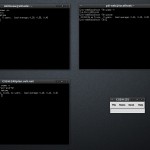
Cluster ssh
Cluster ssh est un outil merveilleux ! Combien de fois ai-je du retaper les mêmes commandes dans deux fenêtres shell différentes sous prétexte que les serveurs faisaient la même chose… Je pense à mes deux serveurs DNS, par exemple.
Évidemment, il faut faire attention à ce qu’on tape car la moindre erreur est reproduite en double… Mais quel bonheur de faire deux fois le travail et surtout d’avoir des configurations identiques quand on le désire.
Autre avantage: si on ouvre plusieurs sessions ssh dans la même commande shell, cssh redimensionne les fenêtres automatiquement.
Attention: si vous ajouter des fenêtres après coup sur Ubuntu, il les superposera sur les précédentes ce qui n’est pas folichon… Il faut prévoir votre nombre de session au départ. Par contre, sur Mac OS X, l’excellent csshX fait le boulot correctement.
