Archive

Archives pour la catégorie ‘Logiciel’

Il y a 15 ans, l’acquisition de NeXT par Apple

10/12/2013 Comments off

next apple20 décembre 1996 : par deux images successives sur la page d’accueil de son site, NeXT annonce son acquisition par Apple. Plus qu’un simple achat, il s’agit en fait d’une fusion : quinze ans plus tard, on peut dire que c’est NeXT qui a absorbé Apple, et non le contraire.

Présenté en 1991, le Système 7 a quasiment traversé la décennie, devenant symptomatique de la maladie frappant Apple.

L’année 1995, notamment, est une charnière : Apple licencie son système à d’autres fabricants, autorisant l’apparition de clones plus puissants et moins chers que les Mac ; le Système 7.5.2 inaugure quant à lui une période d’instabilité logicielle qui durera deux ans (lire : Apple, Jobs : John Sculley à cœur ouvert).

À l’époque, Apple travaille sur un tout nouveau système, nom de code Copland.

Le Système 7.5.3 (source)

Alors que les PDG se succèdent à la tête d’Apple, Copland se révèle être un véritable échec. Alors que Gil Amelio avait promis de présenter le futur du logiciel d’Apple en janvier 1997, le projet Copland atteint une impasse à l’été 1996 : non content d’avoir ralenti le développement des mises à jour du Système 7, il n’est jamais parvenu à maturité, se révélant particulièrement instable et prenant très mal en compte Internet. Apple se met alors en quête d’une solution externe.

next appleLa firme de Cupertino envisage plusieurs solutions : Jean-Louis Gassée, fondateur d’Apple France et directeur de la division recherche et développement d’Apple jusqu’à sa démission en 1990, propose son système, BeOS. Cette option est très sérieusement considérée : Gassée bénéficie encore d’une excellente image auprès des employés d’Apple, et son OS est séduisant.

Alors qu’Apple doit parvenir au plus vite à un accord, il fait cependant l’erreur de faire traîner les discussions : Sun Solaris ou même Windows NT sont alors étudiés de près, le premier par Ellen Hancock (ancienne d’IBM, directeur de la R&D d’Apple ayant mis fin à Copland), le deuxième par Marco Landi (no. 2 d’Apple).
Lire la suite…

How to Jailbreak Your iPhone 3GS Using RedSn0w (Mac) [5.1]

26/11/2013 Comments off

Source: iclarified.com

These are instructions on how to jailbreak your iPhone 3GS on the iOS 5.1 firmware using RedSn0w for Mac.

This procedure will cause you to upgrade your baseband potentially ruining your chances for an unlock. Please follow this tutorial to update to iOS 5.1 using a custom ipsw if you need an unlock. The jailbreak is also tethered for all devices except the old bootrom iPhone 3GS which means you will need to connect your device to the computer each time you reboot. Finally, it may be prudent to save your SHSH Blobs by following this tutorial before continuing.

If you want to jailbreak a lower firmware version you can find the appropriate tutorial here.

Lire la suite…

Categories: Logiciel, Matériel Tags: , ,

Fix “This device isn’t eligible for the requested build” Error in iTunes When Updating iOS

23/06/2013 Comments off

Source: osxdaily.com


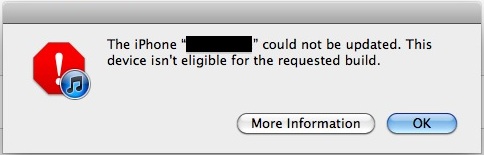
If you’re trying to update iOS to the latest version on an iPhone, iPad, or iPod touch and you get an error in iTunes saying:

The iOS Device “Device Name” could not be updated. This device isn’t eligible for the requested build.

device-isnt-eligible-errorYou’re encountering one the following problems: either you are using an old version of iTunes, you are using an incorrect version of the firmware for your device, or you have gs.apple.com re-routed in your hosts file.

If you know you’re on the right iTunes and iOS version and you’re familiar with editing a hosts file, just throw # in front of the “74.208.10.249 gs.apple.com” entry and you’ll be good to go. If you have no idea what that means, read on and it’ll be explained easily. First let’s cover the iTunes and firmware aspect, then explain hosts modifications. Try these in order, one of them will certainly fix the ineligible build error:

1) Update iTunes

This is easy, just open iTunes and update to the latest version. This is required because the newest version of iOS require the newest versions of iTunes. Easy to resolve.

2) Use Proper iOS Firmware

The next thing you need to do is make sure you’re using the proper firmware IPSW file for your iOS hardware. You can download any firmware files from these links:

A fair amount of confusion regarding IPSW seems to be in the difference between GSM and CDMA downloads, in the USA this is easiest to determine based on the cellular provider: AT&T is GSM, Verizon is CDMA. If you’re not sure what to do with an IPSW file, you can read our walkthrough ofhow to use them.

If you’re certain you have the correct firmware file and you’re still getting the “device isn’t eligible” iTunes error, it’s almost certainly a result of gs.apple.com being blocked in the hosts file.

2) Remove the Hosts Block

This usually comes from users who have jailbroken an iOS device at some point on their computer, or did the error 3194 fix, and as a result have a line in their hosts file blocking Apple’s servers. There’s two ways to fix this, the first is the easiest:

Easy: Using TinyUmbrella
TinyUmbrella prevents you from having to use the Terminal to edit system files, instead you can just launch the app and quit it.

After you’ve downloaded and installed TinyUmbrella, here’s how to use it to remove a hosts block:

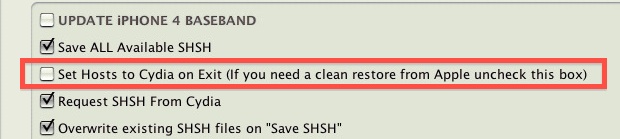
  • Open TinyUmbrella and click on the “Advanced” button tab at the bottom
  • Uncheck the box next to “Set Hosts to Cydia on Exit”

remove-cydia-hosts-file

Now quit out of TinyUmbrella and the app will modify the hosts file in the process to remove the block, allowing you to connect to Apple’s servers again. Before you try though, be sure to turn the iPhone, iPad, or iPod touch on and off again, and relaunch iTunes as well.

If you still run into problems, you may need to flush the DNS cache as well. Quit out of iTunes and open the Terminal in OS X Lion, then type:
dscacheutil -flushcache
Now relaunch iTunes and you’ll be good.

Advanced: Manually Editing Hosts

  • Quit out of iTunes
  • Go to the hosts file. For Mac OS X this is located at: /etc/hosts or /private/etc/hosts and in Windows it is located at: c:\windows\system32\drivers\etc\hosts
  • Open the hosts file with Administrative privileges so that changes can be made and saved (eg: sudo nano /etc/hosts)
  • Look for a line that resembles something like this:

74.208.10.249 gs.apple.com

  • Put a # in front of that to comment it out, making it now look like this:

# 74.208.10.249 gs.apple.com

  • Save the hosts file
  • Flush DNS cache and restart iTunes

Whichever approach you took, this fixes the “eligible build” error and the iOS device will update as intended.

Categories: Logiciel, Matériel Tags: ,