Archive

Archives pour 12/2023

Easy Ubuntu 16.04 Server Firewall

08/12/2023 Comments off

If you read our previous article Easy Ubuntu Server Firewall, then you may have noted that on Ubuntu 16.04 the described method no longer works. This is due to systemd. In the article below we will walk through creating a persistent IPTables based firewall on Ubuntu 16.04 LTS. First we need to install some required software packages. As seen in the command below, install iptables-persistent. Next we will make netfilter-persistent run at boot. This is the most important step as it will ensure your rules are reloaded at boot time.

# Install IPTables Persistent Package
apt-get install -y iptables-persistent
# Add netfilter-persistent Startup
invoke-rc.d netfilter-persistent save
# Stop netfilter-persistent Service
service netfilter-persistent stop

Once the packages above are installed and the service is stopped, you will have a new directory at /etc/iptables/. This directory holds the IPTables filter rules that will be reloaded at boot time. These files are named rules.v4 and rules.v6 respectively. IPV4 rules are loaded into rules.v4 and IPV6 rules are loaded into rules.v6. For the purpose of this article we will focus on IPV4 rules. Next we will want to copy the rules below into our rules.v4 file. Of course the rules will need to be modified to fit your environment.

# Generated by iptables-save v1.3.3 on Wed Apr 9 10:51:08 2008
# Flush out any rules that are already in there
*filter
:INPUT ACCEPT [146:11332]
:FORWARD ACCEPT [0:0]
:OUTPUT ACCEPT [104:9831]
 
# Allow internal loopback connections
-A INPUT -i lo -j ACCEPT
-A OUTPUT -o lo -j ACCEPT
 
# Allow pinging
-A INPUT -p icmp -m icmp --icmp-type 8 -j ACCEPT
 
# Allow any outbound data, and any inbound data related to a connection that is already in use
-A INPUT -m state --state RELATED,ESTABLISHED -j ACCEPT
-A OUTPUT -m state --state NEW,RELATED,ESTABLISHED -j ACCEPT
 
# =========BEGIN SERVER SPECIFIC PORT OPEN RULES=========
# Allow SCP/SSH Access from Green & Blue Subnet
-A INPUT -s 172.16.12.0/255.255.255.0 -p tcp -m tcp --dport 22 -j ACCEPT
-A INPUT -s 10.10.12.0/255.255.255.0 -p tcp -m tcp --dport 22 -j ACCEPT
 
# Allow HTTP Access from Red Subnet/Internet
-A INPUT -p tcp -m state --state NEW,ESTABLISHED --dport 80 -j ACCEPT
 
# Allow HTTPS Access from Red Subnet/Internet
-A INPUT -p tcp -m state --state NEW,ESTABLISHED --dport 443 -j ACCEPT
 
# Allow MySQL Access from Red Subnet/Internet
-A INPUT -p tcp -m state --state NEW,ESTABLISHED --dport 3306 -j ACCEPT
 
# Allow FTP Access from Red Subnet/Internet
-A INPUT -p tcp -m state --state NEW,ESTABLISHED --dport 21 -j ACCEPT
-A INPUT -p tcp -m state --state NEW,ESTABLISHED --dport 58000:58010 -j ACCEPT
# =========END SERVER SPECIFIC PORT OPEN RULES=========
 
# Drop everything that hasn't been picked up by one of the rules above
-A INPUT -j DROP
-A FORWARD -j DROP
-A OUTPUT -j DROP
 
COMMIT
# Completed on Wed Apr 9 10:51:08 2008

Lastly, in order for our new rules to take affect, we simply need to start the netfilter-persistent service as seen below. That’s it, you now have a fully functional IPTables based firewall.

# Start netfilter-persistent Service
service netfilter-persistent start

# Check if IPTables were applied
iptables -L
Getting started with Let’s Encrypt SSL Certificates on Ubuntu

08/12/2023 Comments off

This tutorial will guide you through your very first configuration of an SSL website with Let’s Encrypt certification. Let’s Encrypt is a new SSL authority that provides free SSL certificates. We are going to use two existing tutorials (“How to setup an intermediate compatible SSL website with Let’s Encrypt certificate” and “The Perfect Server – Ubuntu 15.10 (Wily Werewolf) with Apache, PHP, MySQL, PureFTPD, BIND, Postfix, Dovecot and ISPConfig 3”).

The setup described here is compatible with any Ubuntu LAMP server, so you can use this one as the basis setup too.

This tutorial will show you how to setup Let’s Encrypt on Servers without ISPConfig 3 as there will be a direct implementation of the Let’s Encrypt service in the next ISPConfig 3 release (version 3.1) soon. So if you plan to use ISPConfig, wait for the 3.1 release and also a new tutorial.

Creating the website

The 1st step is to create the website configuration and directory and enable SSL (Apache mod_ssl) for it. It’s up to you if you use the default configuration for one website on a server or you plan to use multiple vhosts to host more than one domain. For more reliable and scalable usage, I’ll create a vhost configuration for my “lab” domain isp1.cloudapp.net from Azure.

Lire la suite…

Categories: Sécurité, Système Tags:

Inotify: Efficient, Real-Time Linux File System Event Monitoring

07/12/2023 Comments off

Summary – or why should I monitor the filesystem at all?

The need to scan a given filesystem for changes is a fairly common one, and there are a variety of common tasks which require this, including:

  • Notifying applications of changes in configuration files
  • Tracking changes in critical system files
  • Monitoring overall disk usage on a partition
  • Automatic cleanup after a crash
  • Automatic triggering of backup processes
  • Sending notifications when the upload of a file to a server completes

A common approach to doing this sort of change notification is file polling, however this tends to be inefficient for all but the most frequently-changed files (since you have a guaranteed I/O every X seconds) and can miss certain types of changes (e.g. if the modification timestamp on a file isn’t changed). Data integrity systems like Tripwire track file changes based on a fixed time schedule, but the time-scheduled approach doesn’t work if you want to be notified every time it changes in real-time – just as an event takes place. A framework which fulfills that requirement is Inotify. In this article we will walk through how to use Inotify to monitor directories and trigger alerts on changes and present tools you might want to add to your personal toolbox.

Lire la suite…

Categories: Sécurité, Système Tags:

How to Enable IP Forwarding in Linux

07/12/2023 Comments off

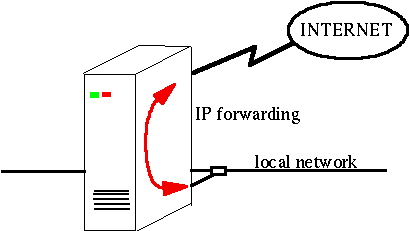
ip forwarding linuxBy default any modern Linux distributions will have IP Forwarding disabled. This is normally a good idea, as most peoples will not need IP Forwarding, but if we are setting up a Linux router/gateway or maybe a VPN server (pptp or ipsec) or just a plain dial-in server then we will need to enable forwarding. This can be done in several ways that I will present bellow.

Check if IP Forwarding is enabled

We have to query the sysctl kernel value net.ipv4.ip_forward to see if forwarding is enabled or not: Using sysctl:

sysctl net.ipv4.ip_forward
net.ipv4.ip_forward = 0

or just checking out the value in the /proc system:

cat /proc/sys/net/ipv4/ip_forward
0

As we can see in both the above examples this was disabled (as show by the value 0).

Enable IP Forwarding on the fly

As with any sysctl kernel parameters we can change the value of net.ipv4.ip_forward on the fly (without rebooting the system):

sysctl -w net.ipv4.ip_forward=1

or

echo 1 > /proc/sys/net/ipv4/ip_forward

the setting is changed instantly; the result will not be preserved after rebooting the system.

Permanent setting using /etc/sysctl.conf

If we want to make this configuration permanent the best way to do it is using the file /etc/sysctl.conf where we can add a line containing net.ipv4.ip_forward = 1

/etc/sysctl.conf:
net.ipv4.ip_forward = 1

if you already have an entry net.ipv4.ip_forward with the value 0 you can change that 1.

To enable the changes made in sysctl.conf you will need to run the command:

sysctl -p /etc/sysctl.conf

On RedHat based systems this is also enabled when restarting the network service:

service network restart

and on Debian/Ubuntu systems this can be also done restarting the procps service:

/etc/init.d/procps.sh restart

Using distribution specific init scripts

Although the methods presented above should work just fine and you would not need any other method of doing this, I just wanted to note that there are also other methods to enable IP Forwarding specific to some Linux distributions. For example Debian based distributions might use the setting:

/etc/network/options:
ip_forward=no

set it to yes and restart the network service. Also RedHat distributions might set this using:

/etc/sysconfig/network:
FORWARD_IPV4=true

and again restart the network service.

Regardless the method you have used once you have completed this you can check it out using the same method shown above:

sysctl net.ipv4.ip_forward
net.ipv4.ip_forward = 1


cat /proc/sys/net/ipv4/ip_forward
1

If the result is 1 then the Linux system will start forwarding IP packets even if they are not destined to any of its own network interfaces.

Categories: Réseau Tags:

How can I find out if a specific program is installed?

06/12/2023 Comments off

there’s always apt-cache policy <package-name> (no sudo needed).

Not installed:

olivier@neews:/$ apt-cache policy gnuift
 gnuift:
   Installed: (none)
   Candidate: 0.1.14-11
   Version table:
      0.1.14-11 0
         500 http://archive.ubuntu.com/ubuntu/ oneiric/universe amd64 Packages

Installed:

olivier@neews:/$ apt-cache policy firefox
 firefox:
   Installed: 8.0+build1-0ubuntu0.11.10.3
   Candidate: 8.0+build1-0ubuntu0.11.10.3
   Version table:
  *** 8.0+build1-0ubuntu0.11.10.3 0
         500 http://archive.ubuntu.com/ubuntu/ oneiric-updates/main amd64 Packages
         500 http://archive.ubuntu.com/ubuntu/ oneiric-security/main amd64 Packages
         100 /var/lib/dpkg/status
      7.0.1+build1+nobinonly-0ubuntu2 0
         500 http://archive.ubuntu.com/ubuntu/ oneiric/main amd64 Packages

Or dpkg: dpkg -l | grep -E '^ii' | grep <package name>. When it’s not installed it won’t show output. When it is, it’ll show something like:

olivier@neews:~$ dpkg -l | grep -E '^ii' | grep firefox
 ii  firefox                                                     8.0+build1-0ubuntu0.11.10.3                            Safe and easy web browser from Mozilla
 ii  firefox-branding                                            8.0+build1-0ubuntu0.11.10.3                            Safe and easy web browser from Mozilla - transitional package
 ii  firefox-globalmenu                                          8.0+build1-0ubuntu0.11.10.3                            Unity appmenu integration for Firefox
 ii  firefox-gnome-support                                       8.0+build1-0ubuntu0.11.10.3                            Safe and easy web browser from Mozilla - GNOME support
 ii  firefox-locale-en                                           8.0+build1-0ubuntu0.11.10.3                            English language pack for Firefox
It's obviously a fuzzier search but handy if you're not sure which package you're looking for.
 
 For manually installed things...
 
 A bit harder but if they're on the current path, you could just run them. That's a bit of mission so I'd rather just run:
 
 oli@bert:/$ which chromium-browser
 /usr/bin/chromium-browser

And:

oli@bert:/$ which gnuift
# returns nothing

Which is better?

That depends on the sanity of user. There’s nothing to stop somebody installing something called chromium-browser that isn’t Chromium. They could even package it up incorrectly and install that. Neither method can be 100% certain.

But assuming the owner is sane – packages should be good enough for most people.

Categories: Système Tags: , , ,