Archive

Archives pour la catégorie ‘Réseau’

Monitoring de serveurs avec Munin

30/01/2024 Comments off

Installation

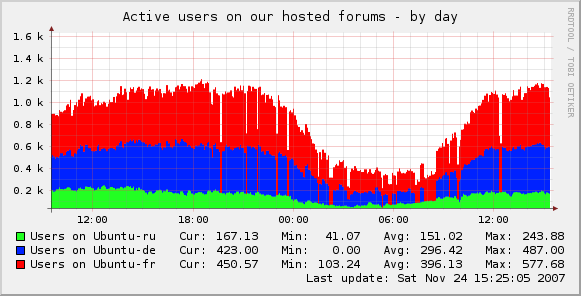
Munin est un outil de monitoring fonctionnant par script et collectant des informations sur le systeme à interval régulier (5min par défaut), Munin affiche des graphiques concernants des informations qu’il collecte dans /proc. Les graphiques sont accessibles via apache, il faut donc également sécuriser l’accès à celui-ci. Il faut installer trois choses différentes :monitoring munin

  • le programme munin,
  • le daemon munin-node qui va monitorer les informations système,
  • et apache2 qui nous permettra de visualiser les graphiques.

Lire la suite…

Accéder à un serveur ssh comme si c’était un répertoire local

29/01/2024 Comments off

1. Installez sshfs:

sudo aptitude install sshfs

2. Créez le répertoire où apparaîtra le serveur ssh:

mkdir pointdemontage

3. Ajoutez les utilisateurs autorisés à utiliser le logiciel au groupe fuse :

sudo adduser username fuse

4. Montez le serveur ssh:

sshfs login@monserveurssh: pointdemontage

(N’oubliez pas les deux points (:) après le nom ou l’adresse du serveur ssh)

Et voilà !

Vous pouvez accéder au contenu de votre serveur ssh comme si c’était un simple répertoire local !

Pour démonter l’accès:

fusermount -u pointdemontage

Pour plus d’informations, voir la documentation ubuntu : http://doc.ubuntu-fr.org/sshfs

Basic munin plugins for Snort

27/01/2024 Comments off

munin pluginsHere are some basic munin plugins for snort using perfmon (Enable preprocessor perfmonitor in snort.conf)
The snort.conf entry should look something like:

preprocessor perfmonitor: time 300 file /your/path/to/snort.stats pktcnt 5000

(Read the snort docs for more info on performance issues etc.)

Drop Rate:
http://download.gamelinux.org/snort/snort_drop_rate

Pattern Matching:
http://download.gamelinux.org/snort/snort_pattern_match

Traffic speed:
http://download.gamelinux.org/snort/snort_traffic

Alerts:
http://download.gamelinux.org/snort/snort_alerts

Avg KBytes/pkt:
http://download.gamelinux.org/snort/snort_bytes_pkt

Avg Pkts/sec:
http://download.gamelinux.org/snort/snort_pkts

Edit any one of them, to graph what you want from perfmon output. It should be easy!

And now I will test them myself!

Update:
Here is a picture to give you an idea on how the graphs looks:
http://download.gamelinux.org/snort/Snort-Munin-Plugins.pngsource: http://www.gamelinux.org/?p=32

source: GAMELINUX

How to find out Router MAC address

24/01/2024 Comments off

Source: nixCraft

MAC is acronym for for Media Access Control address. It is a unique identifier attached to almost most all networking equipment such as Routers, Ethernet cards and other devices.

If you do not have access to router admin interface (via telnet or webbased), use following method to find out router MAC address.

You need to use arp command (available on both Windows, Linux/Unixish systems).

arp manipulates the kernel’s ARP cache in various ways. The primary options are clearing an address mapping entry and manually setting up one. For debugging purposes, the arp program also allows a complete dump of the ARP cache.

arp shows the entries of the specified hosts. If the hostname parameter is not used, all entries will be displayed.

Task: Find out router Mac Address

To find out your router MAC address, use arp command as follows:

$ /usr/sbin/arp -a
OR
$ arp -a
Output:

router (192.168.1.254) at 00:08:5C:00:00:01 [ether] on eth0
fbsd6 (192.168.1.16) at 00:0F:EA:91:04:07 [ether] on eth0

In above example 00:08:5C:00:00:01 is MAC address of my router. If you cannot find MAC address then just ping to your router once (my router had 192.168.1.254 IP)
$ ping 192.168.1.254
And then run (type arp -a) above arp command again. If you have telnet access to router then you can just telnet into router and find out MAC address:
$ telnet 192.168.1.254

Output:

Welcome to nixCraft Router!
Login: admin
Password:

Once logged in type ifconfig command:

$ ifconfig br0

Output:

br0             Link encap:Ethernet  HWaddr 00:08:5C:00:00:01
        inet addr:192.168.1.254  Bcast:192.168.1.255  Mask:255.255.255.0
        UP BROADCAST RUNNING MULTICAST  MTU:1500  Metric:1
        RX packets:48574 errors:0 dropped:0 overruns:0 frame:0
        TX packets:61329 errors:0 dropped:0 overruns:0 carrier:0
        collisions:0 txqueuelen:0
        RX bytes:9146189 (8.7 MiB)  TX bytes:74456679 (71.0 MiB)

Please note that your interface name (br0) could be different. You can also use ifconfig -a command.

Windows XP/NT/2003 find out Router Mac address

If you are using Microsoft Windows XP then you need to open MS-DOS shell prompt first. Click on Start > Run > Type cmd command followed by ENTER key. Then at C:\> prompt, type arp command as follows:

C:\> arp -a

Categories: Réseau Tags: ,

Fail2ban – Block unwanted attacks

23/01/2024 Comments off

source: Paul’s blog

Up until now i have been manually blocking ip’s that attack my server but by the time i see them the attacks have normally finished but after the last big attack on my email server (some 35,000 attempts) i decided to find a way to automate the blocking. After a bit of research i decided to setup Fail2ban and here’s how i did it.

As i use a 3rd party repostories – EPEL (how to add repositories) i can just use yum to install it

yum install fail2ban

once installed i just needed to change the configuration to my liking, the config files can be found at « /etc/fail2ban »

first i edit « /etc/fail2ban/fail2ban.conf » and ensure the « logtarget » is set correctly

logtarget = /var/log/fail2ban.log

The default behaviour of fail2ban is configured in the file « /etc/fail2ban/jail.conf ». There’s a [DEFAULT] section that applies to all other sections unless the default options are overridden in the other sections. Lire la suite…