source: lifeonubuntu.com
I went to check out my apache2 logs
ls /var/log/apache2/
and I noticed that they were being automatically rotated (access.log, access.log.1, etc.) and compressed with gzip (access.log.2.gz, etc.). This seems to be the default Ubuntu configuration. I wanted to make find out more, and I found this helpful article about Ubuntu logs, including Apache2 Log info and some basic log rotation info.
After reading through the info, I decided that I wanted to make a few changes. The log rotation happens via the brilliantly named logrotate command. It turns out that logrotate settings kept in 2 places. Lire la suite…
Source: How to edit and understand /etc/fstab
There’s a file called /etc/fstab in your Linux system. Learn what its contents mean and how it’s used in conjunction with the mount command. When you learn to understand the fstab file, you’ll be able to edit its contents yourself, too.
In this tuXfile I assume you already know how to mount filesystems and partitions with the mount command. If you don’t, I suggest reading the Mounting tuXfile before reading this one.
Author: Nana Långstedt < nana.langstedt at gmail.com >
tuXfile created: 12 October 2003
Last updated: 5 September 2009
What is fstab and why it’s useful
fstab is a configuration file that contains information of all the partitions and storage devices in your computer. The file is located under /etc, so the full path to this file is /etc/fstab.
/etc/fstab contains information of where your partitions and storage devices should be mounted and how. If you can’t access your Windows partition from Linux, aren’t able to mount your CD or write to your floppy as a normal user, or have problems with your CD-RW, you probably have a misconfigured /etc/fstab file. So, you can usually fix your mounting problems by editing yourfstab file.
/etc/fstab is just a plain text file, so you can open and edit it with any text editor you’re familiar with. However, note that you must have the root privileges before editing fstab. So, in order to edit the file, you must either log in as root or use the su command to become root.
Overview of the file
Of course everybody has a bit different /etc/fstab file because the partitions, devices and their properties are different on different systems. But the basic structure of fstab is always the same. Here’s an example of the contents of /etc/fstab:
| /dev/hda2 |
/ |
ext2 |
defaults |
1 1 |
| /dev/hdb1 |
/home |
ext2 |
defaults |
1 2 |
| /dev/cdrom |
/media/cdrom |
auto |
ro,noauto,user,exec |
0 0 |
| /dev/fd0 |
/media/floppy |
auto |
rw,noauto,user,sync |
0 0 |
| proc |
/proc |
proc |
defaults |
0 0 |
| /dev/hda1 |
swap |
swap |
pri=42 |
0 0 |
What does all this gibberish mean? As you see, every line (or row) contains the information of one device or partition. The first column contains the device name, the second one its mount point, third its filesystem type, fourth the mount options, fifth (a number) dump options, and sixth (another number) filesystem check options. Let’s take a closer look at this stuff.
1st and 2nd columns: Device and default mount point
The first and second columns should be pretty straightforward. They tell the mount command exactly the same things that you tell mount when you mount stuff manually: what is the device or partition, and what is the mount point. The mount point specified for a device in /etc/fstab is its default mount point. That is the directory where the device will be mounted if you don’t specify any other mount point when mounting the device.
Like you already learned from the Mounting tuXfile, most Linux distros create special directories for mount points. Most distros create them under /mnt, but some (at least SuSE) under /media. As you probably noticed when looking at the example fstab, I use SuSE’s mount points as an example.
What does all this mean? If I type the following command:
$ mount /dev/fd0… my floppy will be mounted in /media/floppy, because that’s the default mount point specified in /etc/fstab. If there is no entry for /dev/fd0 in my fstab when I issue the command above,mount gets very confused because it doesn’t know where to mount the floppy.
You can freely change the default mount points listed in /etc/fstab if you’re not satisfied with the defaults your distro has given you. Just make sure the mount point is a directory that already exists on your system. If it doesn’t, simply create it.
Some partitions and devices are also automatically mounted when your Linux system boots up. For example, have a look at the example fstab above. There are lines that look like this:
/dev/hda2 / ext2 defaults 1 1
/dev/hdb1 /home ext2 defaults 1 2
As you’ve learned, these lines mean that /dev/hda2 will be mounted to / and /dev/hdb1 to /home. This is done automatically when your Linux system boots up… if it wouldn’t, you’d have a hard time using your cool Linux system because all the programs you use are in / and you wouldn’t be able to run them if / wasn’t mounted! But how does the system know where you want to mount/dev/hda2 and /dev/hdb1? By looking at the /etc/fstab file of course.
Lire la suite…
 Need to monitor Linux server performance? Try these built-in command and a few add-on tools. Most Linux distributions are equipped with tons of monitoring. These tools provide metrics which can be used to get information about system activities. You can use these tools to find the possible causes of a performance problem. The commands discussed below are some of the most basic commands when it comes to system analysis and debugging server issues such as:
- Finding out bottlenecks.
- Disk (storage) bottlenecks.
- CPU and memory bottlenecks.
- Network bottlenecks.
#1: top – Process Activity Command
The top program provides a dynamic real-time view of a running system i.e. actual process activity. By default, it displays the most CPU-intensive tasks running on the server and updates the list every five seconds.
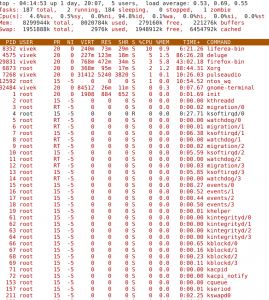 Commonly Used Hot Keys
The top command provides several useful hot keys:
| Hot Key |
Usage |
| t |
Displays summary information off and on. |
| m |
Displays memory information off and on. |
| A |
Sorts the display by top consumers of various system resources. Useful for quick identification of performance-hungry tasks on a system. |
| f |
Enters an interactive configuration screen for top. Helpful for setting up top for a specific task. |
| o |
Enables you to interactively select the ordering within top. |
| r |
Issues renice command. |
| k |
Issues kill command. |
| z |
Turn on or off color/mono |
source: generationip.asia
Fail2ban is a very useful and powerful solution to limit the bruteforce on your server. but fail2ban doesn’t provide you a way to contact directly the IP provider’s of bruteforce attacks source. I have modify an fail2ban action file’s and create a script for that.
INSTALLATION
Go to the fail2ban action folders :
# cd /etc/fail2ban/action.d
Lire la suite…
Introduction
Many times it can be convenient to tunnel your web traffic through a proxy, particularly an encrypted one. This web page shows how to easily tunnel your traffic through an ssh-encrypted proxy on Mac OS X. This allows your traffic to traverse your local network without being visible to snoopers, even when visiting unencrypted sites.
It also allows you to appear to come from a different IP address, allowing you to defeat geolocation schemes. In particular, some credit card processors try to make sure that your credit card billing address is correlated with your IP address, which can be hard on us expatriates. Another example is the free credit report web site which doesn’t seem to work from outside the United States. There are undoubtedly many other practical, legitimate uses for this sort of redirection. Lire la suite…